
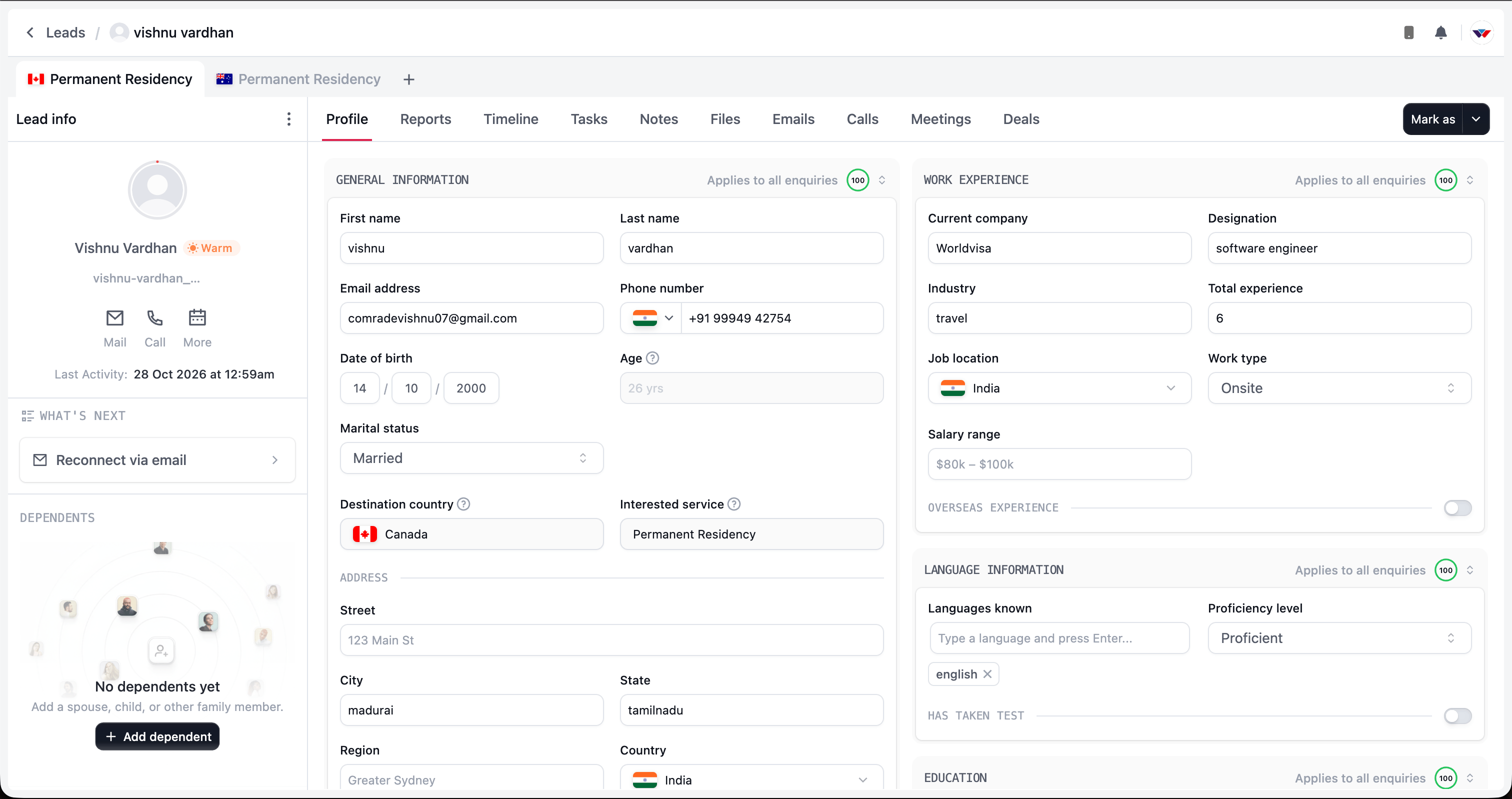
The lead workspace, with enquiry tabs at the top, Lead info on the left, and workspace tabs in the centre.
Find your way around
The workspace has three main areas:- Enquiry tabs at the top: Switch between the client’s enquiries. In the example, the same person has permanent residency enquiries for Canada and Australia.
- Lead info on the left: Find the client’s contact shortcuts, lead temperature, recent activity, suggested next actions, applicants, and assignment information.
- Workspace tabs in the centre: Open the information or activity you need without leaving the enquiry.
Understand the workspace tabs
Check the context before making changes
Some information belongs to the person, while other information belongs to a particular enquiry. For example, the client’s education and work experience apply across their enquiries. Their destination, interested service, and enquiry progress relate to the enquiry you have open. In Profile, sections labelled Applies to all enquiries help you recognise shared information. Updating those details can affect what your team sees when reviewing the person’s other enquiries.Choose your next action
The What’s next section suggests actions based on the enquiry’s current situation. Use it as a starting point, then check the previous activity before acting. You may also see actions such as Mark as, proposal actions, or case-related actions. What is available depends on the enquiry’s stage, your access, and any work already completed. A useful starting routine is:- Confirm the enquiry’s service and destination.
- Review the client’s profile and previous activity.
- Check outstanding tasks and suggested actions.
- Continue the conversation with the right context.