
Find the right file
Open the client’s workspace and select Files. Choose a category, then select a file from the list to preview it on the right.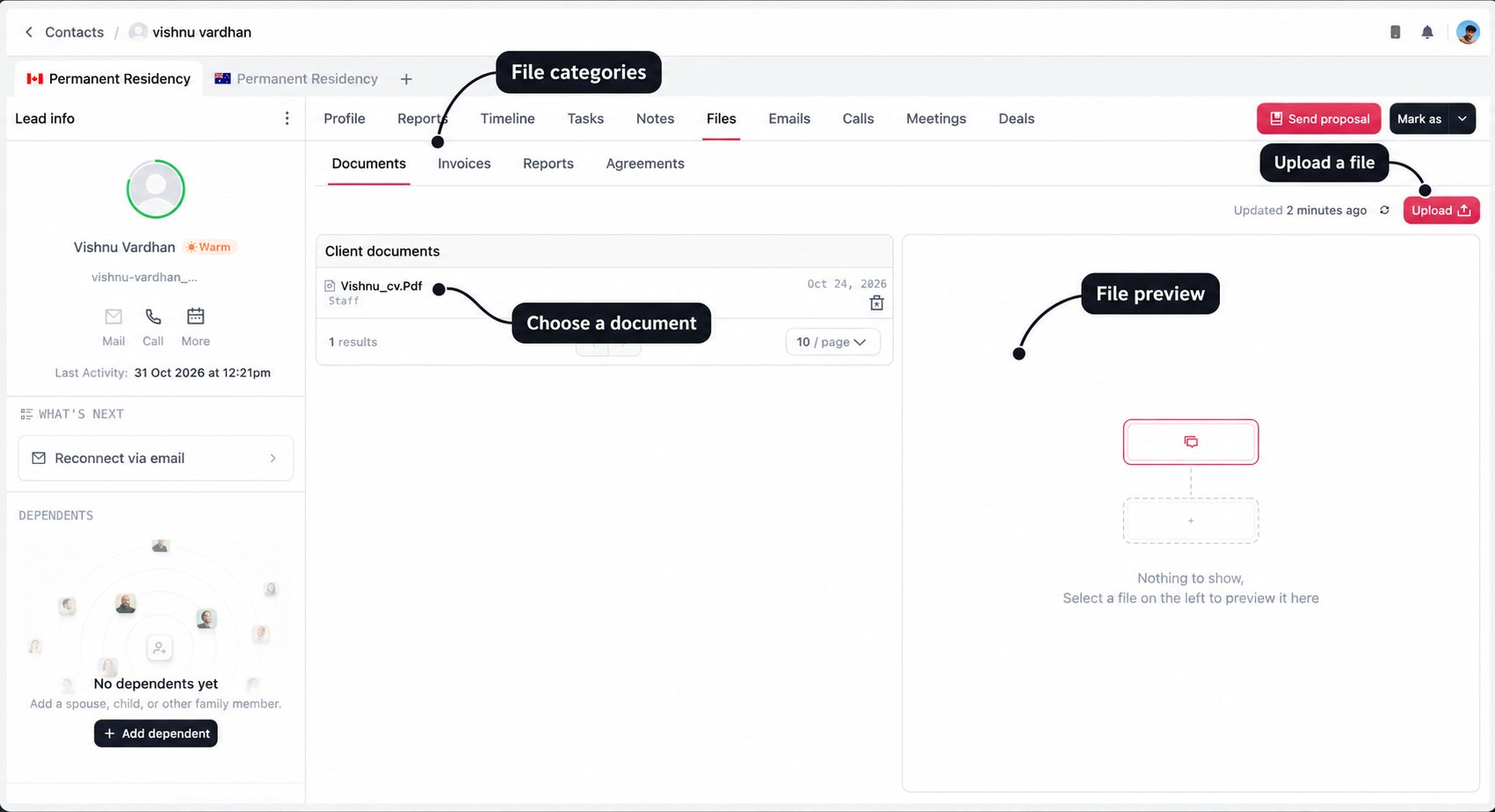
Check the selected enquiry before reviewing an invoice, report, or agreement. A client may have several enquiries with different records in these tabs.
Review a document
Select the file name in Client documents to open its preview. The list also shows a date and a source label, such as Staff, System, or External, to help you understand where the file came from. Use the page arrows and page-size selector when there are more files than fit on one page. Use the refresh icon to request the latest list after an update.A file appearing in Files does not mean it has been checked or approved for the application. Review its contents and leave any important context in Notes.
Upload a client document
In Documents, select Upload. Add one file at a time, give it a useful name, and include a description when the next person needs more context.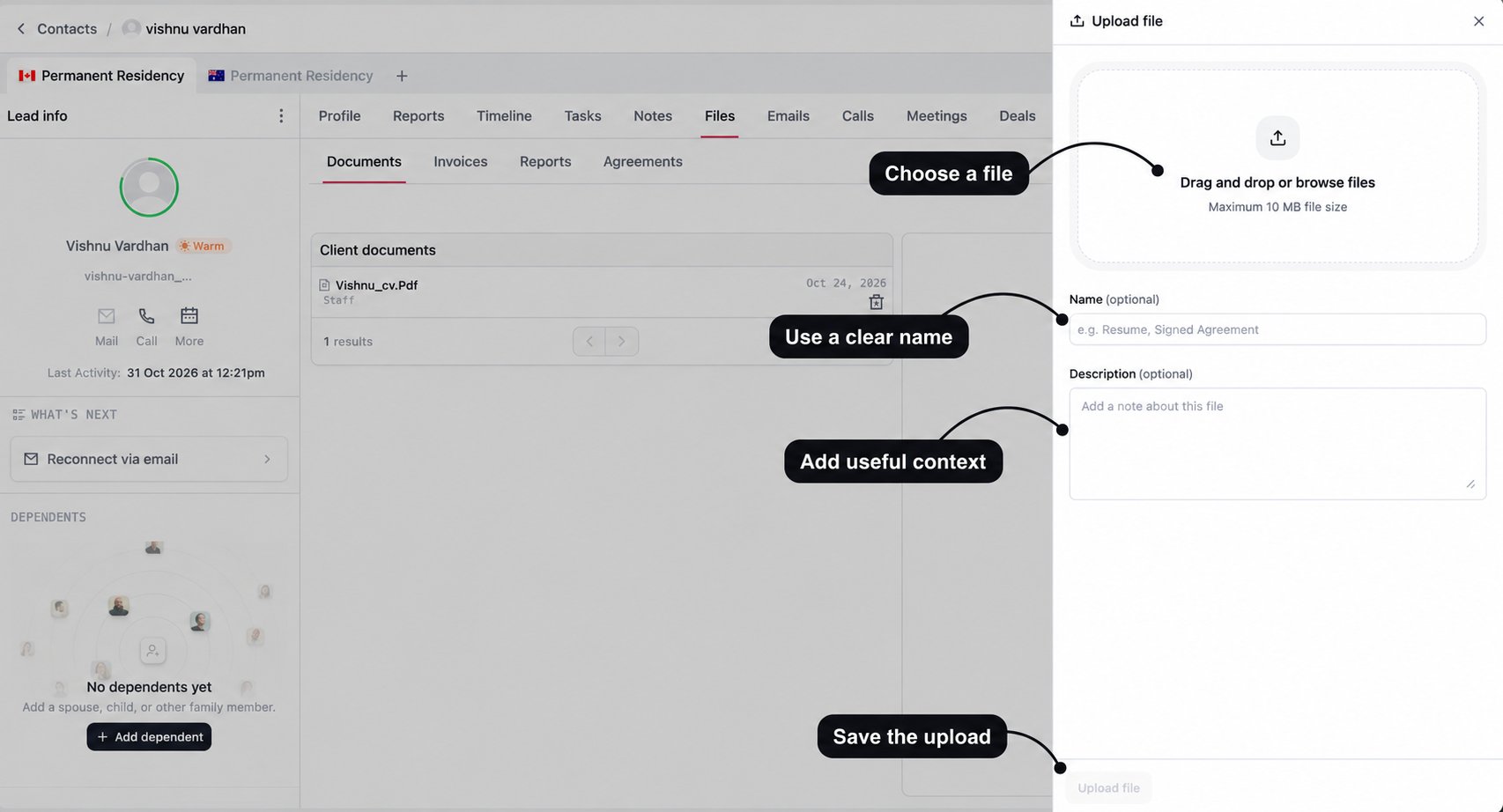
1
Choose the file
Drag the file into the upload area or browse to select it. The upload area shows the current file-size limit; the example above allows up to 10 MB.
2
Give it a clear name
Use Name to identify the person, document, and relevant date or version. Although this field is optional, a useful name saves your colleagues from opening several files to find the right one.
3
Add context where needed
Use Description for a short explanation, such as “Updated résumé received from the client on 31 October; employment dates still need verification.” Keep longer discussions and agreed actions in Notes.
4
Upload and check
Select Upload file and wait for the success confirmation. Find the saved file in the list and open it to confirm that you uploaded the right document and that it is readable.
Name files for the next person
Think about the case officer opening the application later. They should be able to recognise the document without asking you what “final2” or “scan” means. Use a consistent pattern such as Client name - Document type - Date or version. These are suggested names, not a format enforced by the system:
Name the original file clearly before uploading as well. This is especially helpful when uploading from a report workflow that does not ask you for a separate display name.
If a newer document changes information you previously discussed, add a note explaining what changed and which file should be reviewed. A clear name helps people find it; the note explains why it matters.
Use a résumé for a paid report
The Global opportunities report workflow lets you select a résumé from the client’s existing files or upload a new one. You do not need to upload a second copy if the correct résumé is already available.- Use an existing résumé
- Upload from Reports
After completing the required payment step in Reports, open Select resume. Search the client files and select the current résumé. Check the file name and contents beforehand so you do not attach an older version.
Résumé selection is part of the Global opportunities workflow. Other paid reports have their own requirements. Follow the steps shown in the Reports guide.
Prepare files for the case officer
DMS case officers can access the selected applicant’s client files from the related application. Documents collected during the CRM enquiry can therefore support the handover without needing to be collected again. Before handing over, check that:- The relevant documents have been uploaded and open correctly.
- File names identify the person and document clearly.
- Updated versions can be distinguished from older copies.
- Notes explain anything still missing, unverified, or awaiting clarification.
- Any remaining work has a clear owner and, where needed, a task.