Before you send
Open the correct enquiry first. A client may have enquiries for more than one country, so check the country and service in the enquiry tab before choosing Send proposal.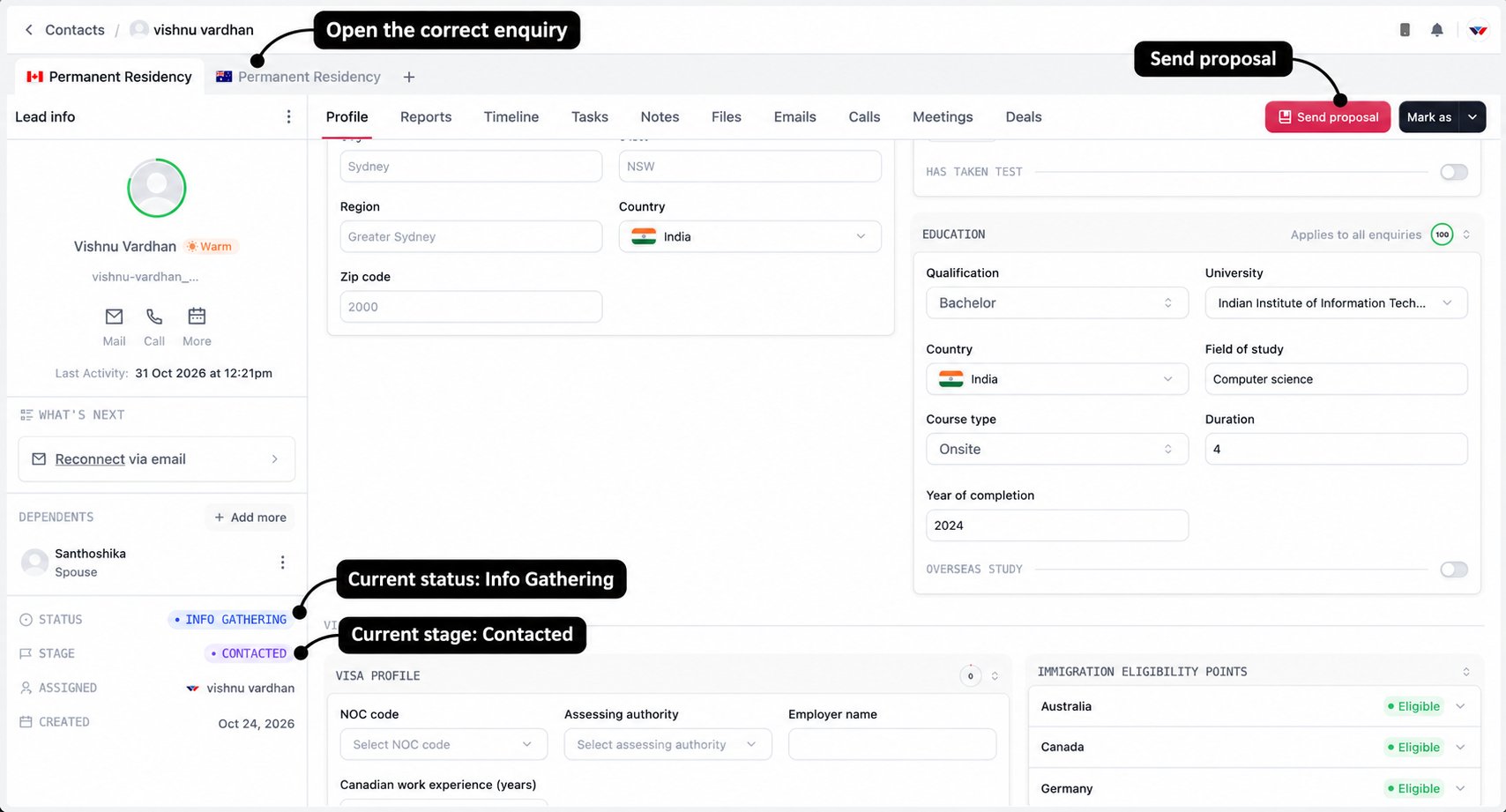
Prepare the proposal
Select Send proposal to open the drawer.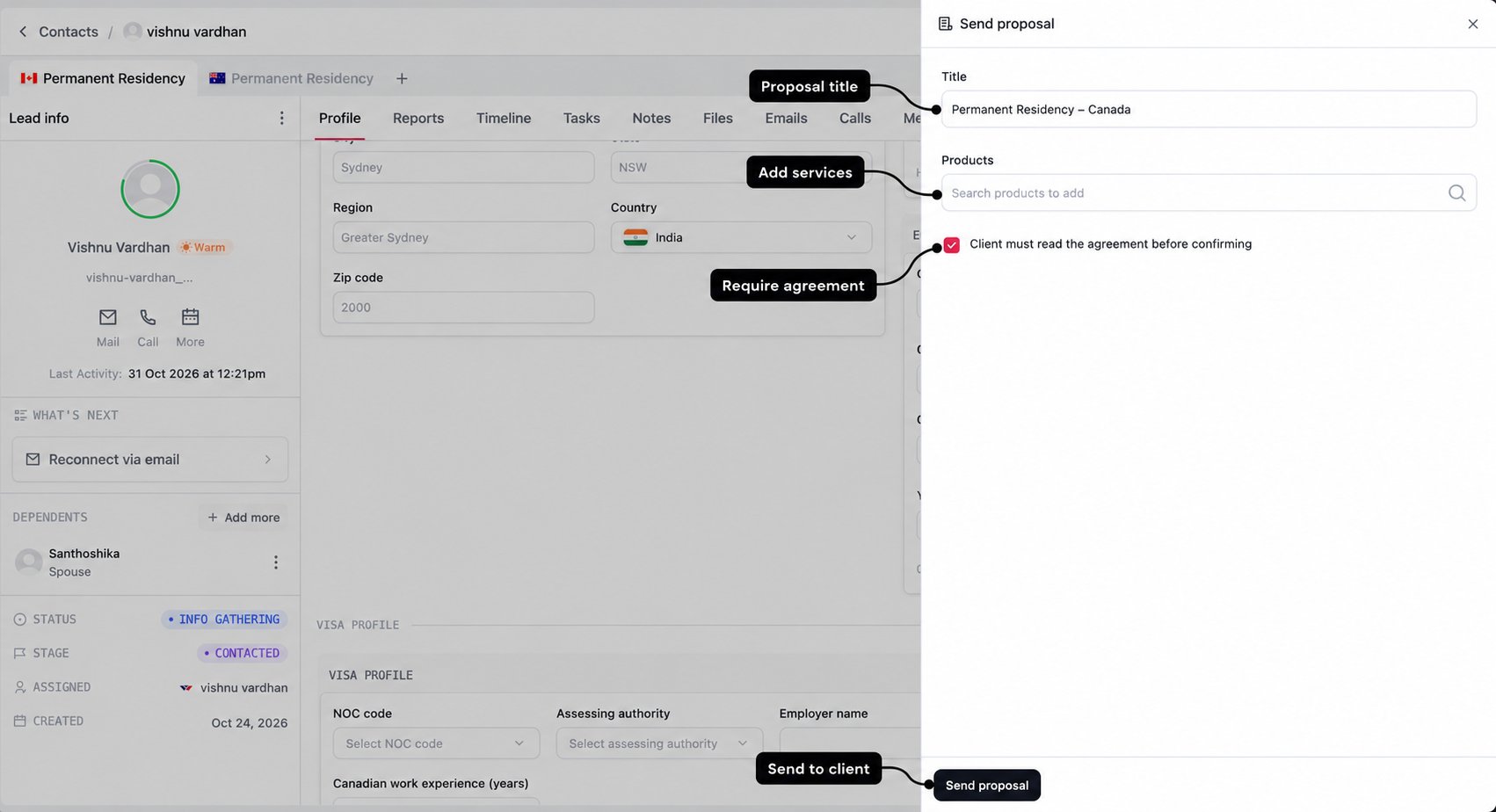
1
Check the title
CRM suggests a title using the enquiry’s service and country, such as Permanent Residency – Canada. Keep it clear enough for the client to recognise it in their email and on the proposal page.
2
Choose the services
Search Products and select the package or services you discussed. Selected items appear beneath the search with their prices and a total. Remove any item added by mistake before sending.
3
Review the agreement requirement
Client must read the agreement before confirming is selected by default. When enabled, the client must tick the agreement checkbox before they can confirm. Keep the requirement appropriate to the proposal you are sending.
4
Review and send
Check the title, selected services, prices, and total together. Select Send proposal once you are ready, then read the confirmation shown by CRM.
Choose the right package and add-ons
The product selector uses the enquiry’s country and service to find suitable catalogue items. Search by the package or service name and check the price before adding it.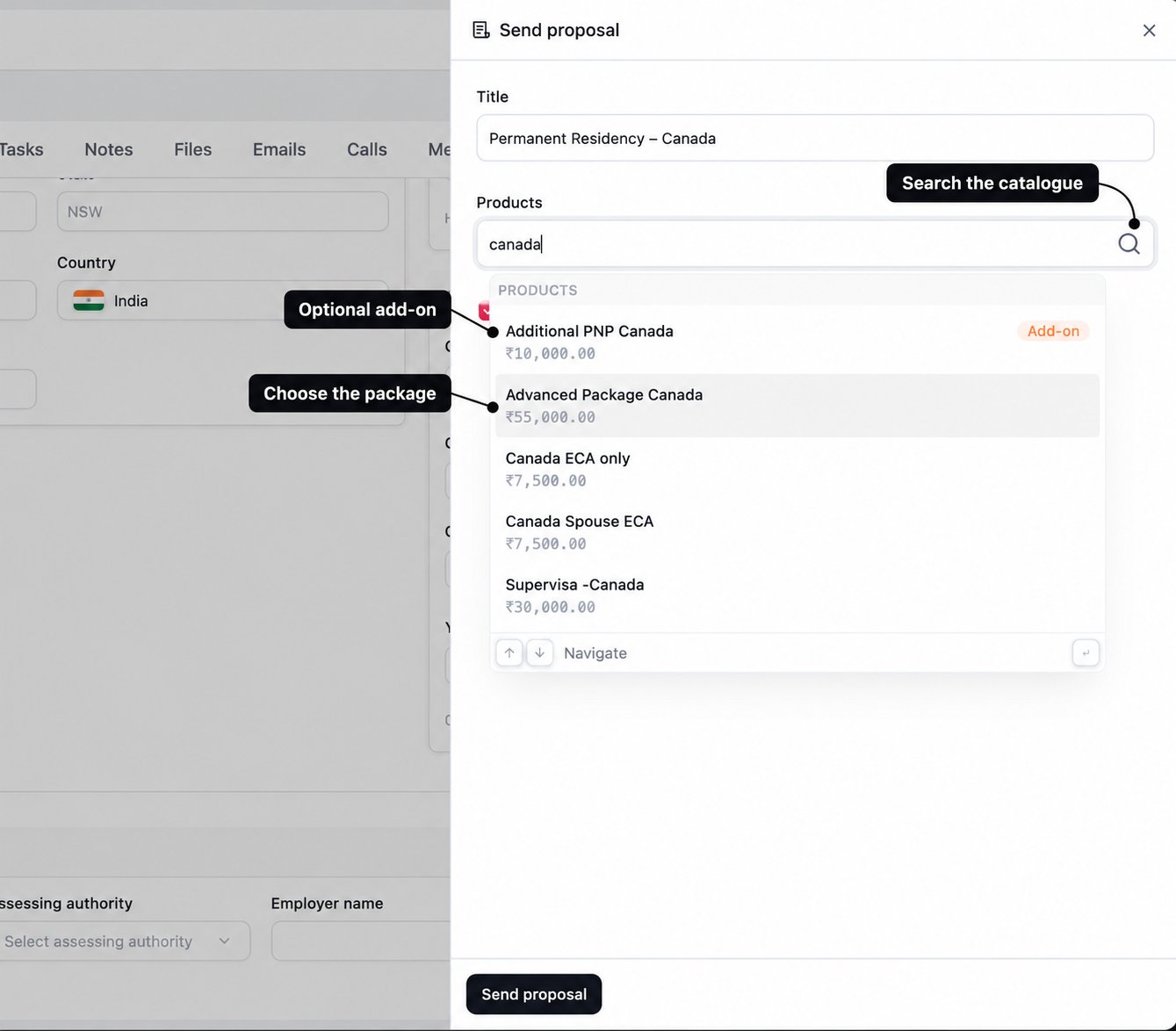
The sent proposal keeps a copy of the selected services and prices. Later catalogue changes do not silently rewrite it. If an open proposal needs updating, use Edit proposal and review its services and total again.
What changes after sending
For the Contacted enquiry in this example, CRM moves the enquiry forward automatically. You do not need to change its stage separately just to show that you sent the proposal.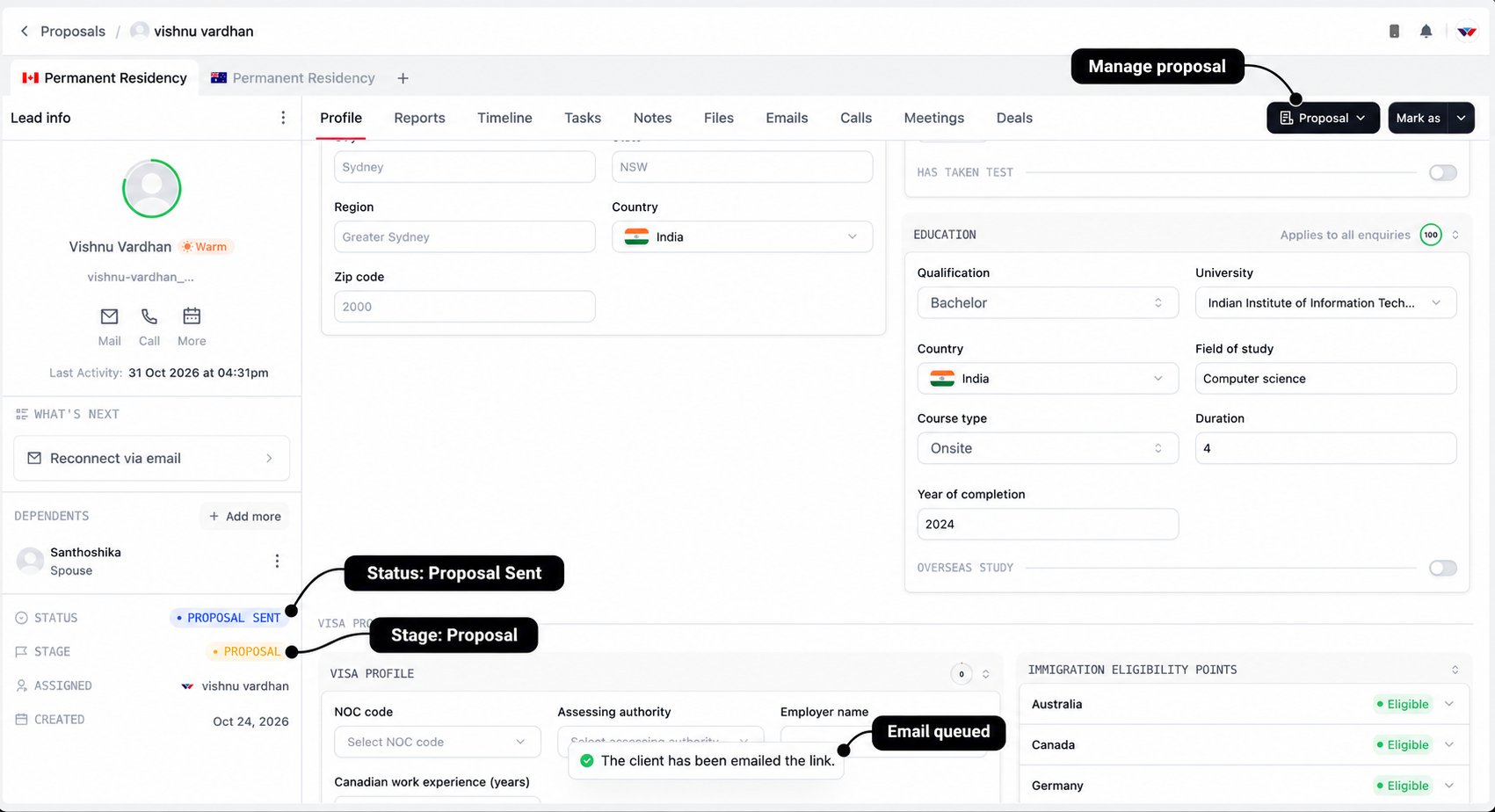
Proposal is the milestone. Proposal Sent tells you what has happened within that milestone. Sending a proposal does not mean the client has read it, accepted it, or paid.
These transitions describe the Contacted-to-Proposal flow. Sending from an eligible Deal enquiry keeps its existing stage and status rather than moving it back to Proposal.
The email your client receives
The client receives an email introducing the proposal and a View proposal button. It gives them a direct route to review the offer and contact you with questions.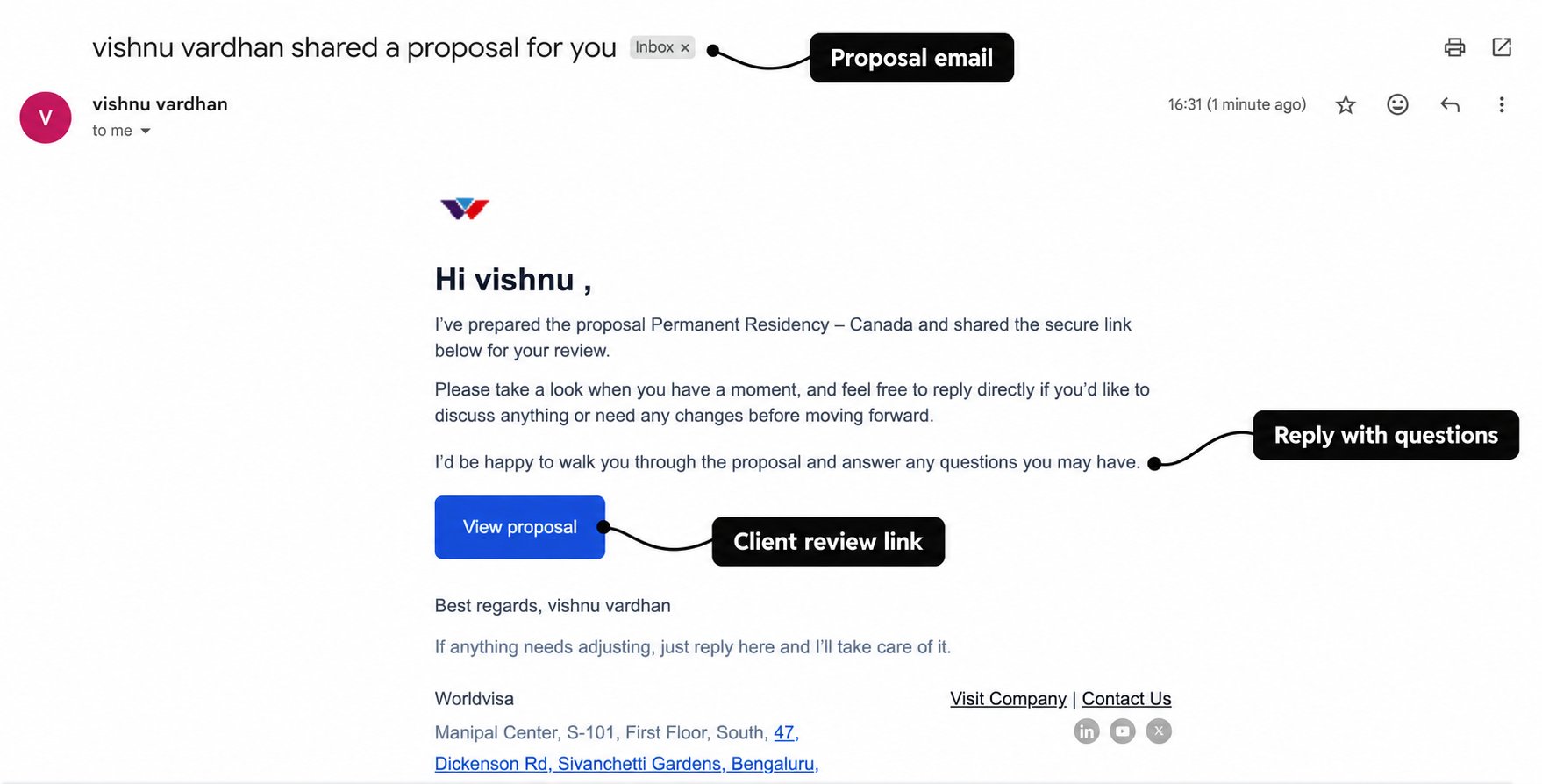
Help the client review and agree
The proposal page shows the title, total, validity date, and the services you included. Selecting a service opens its details. On a smaller screen, the client opens the card to read those details and returns to the proposal afterwards.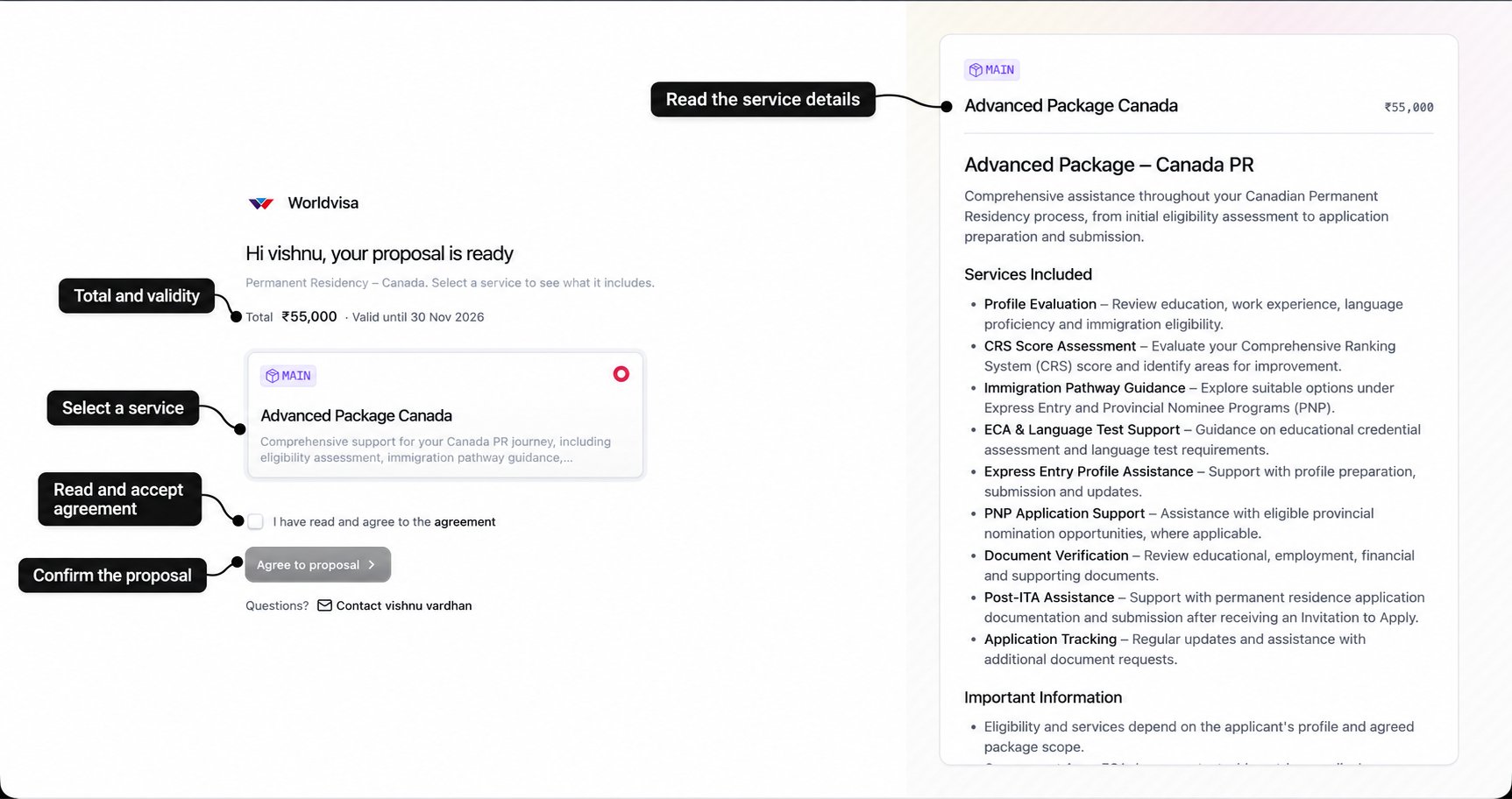
- Review the services. Open each card and read its scope, fees, and important information. Selecting a card shows its details; it does not remove other services from the proposal or change the total.
- Read the agreement. Select the agreement link. Where agreement is required, tick the checkbox after reviewing it.
- Ask questions before confirming. Use the contact link or reply to the proposal email if the offer needs discussing.
- Select Agree to proposal. This records their acceptance. The page then shows that they agreed and that their executive will be in touch with the next steps.
Proposal acceptance records agreement to the offer. Payment, the service agreement, and conversion are separate steps. Do not tell the client that accepting this page alone has started their application.
Follow progress in Timeline
Open Timeline to check what has happened. The sequence below shows the proposal being sent, the automatic stage and status changes, and the first recorded opening of the client page.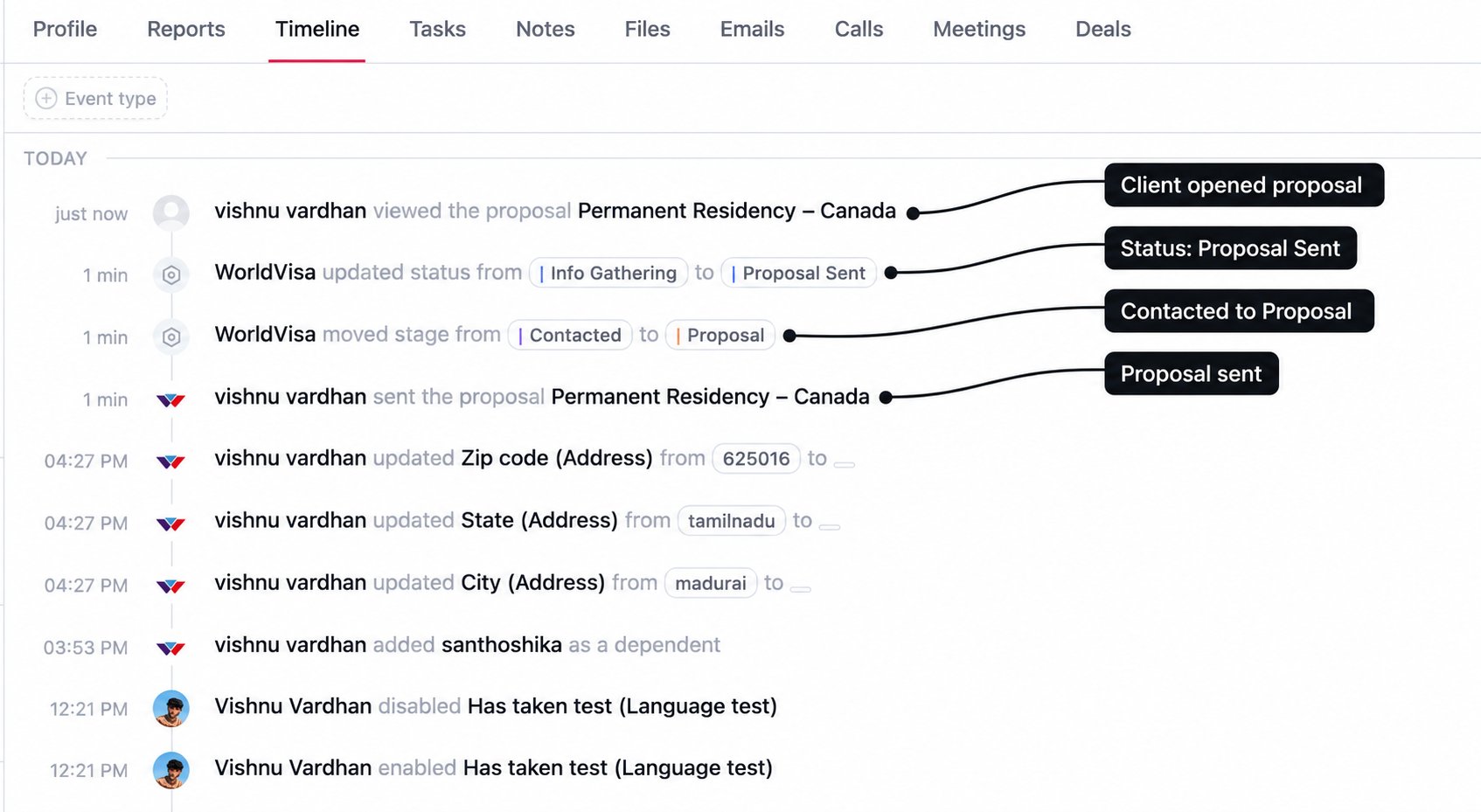
Change, resend, preview, or copy
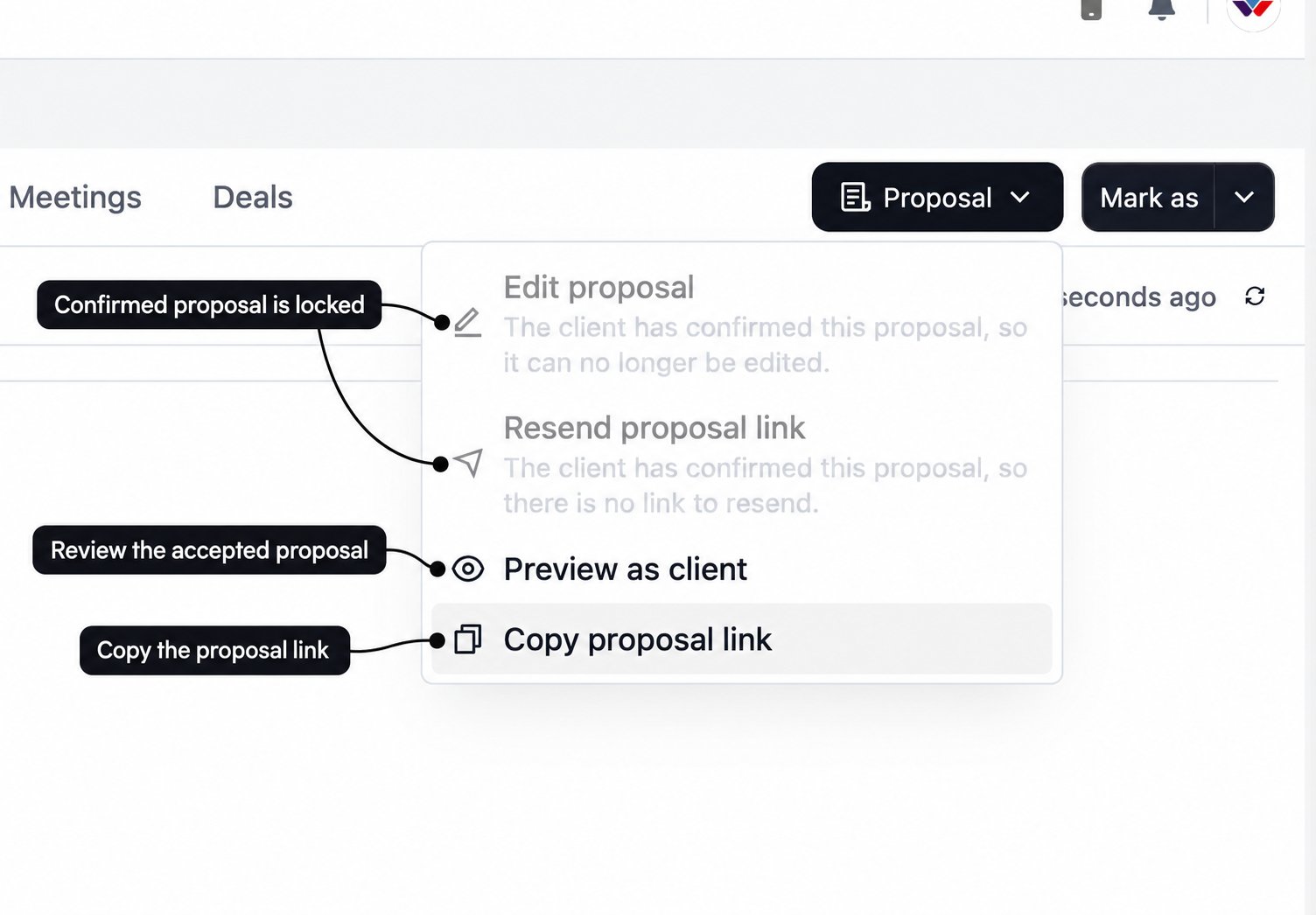
After sending, open the Proposal menu beside Mark as.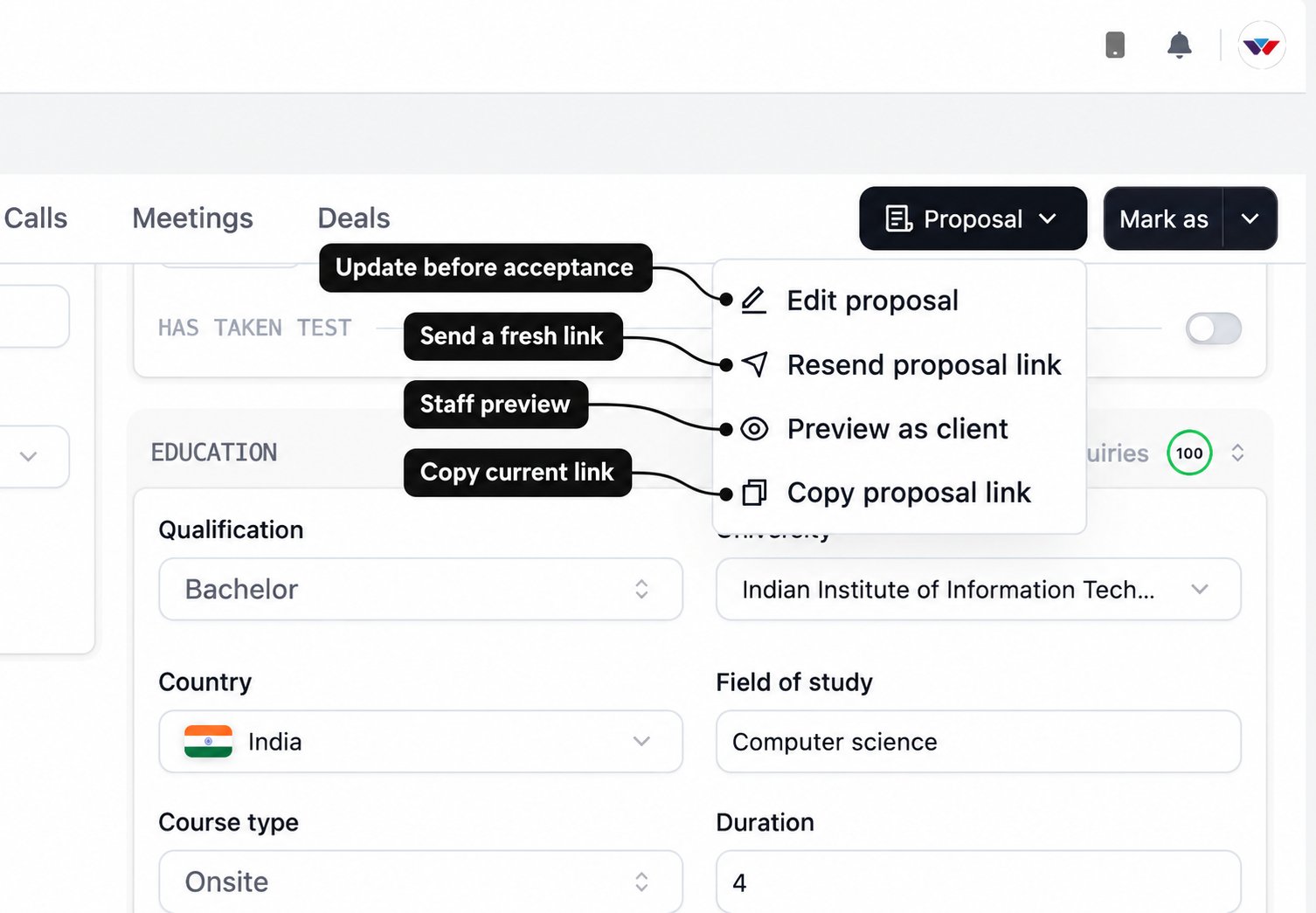
If you revise the offer, explain what changed. Use Resend proposal link when you also want CRM to email the client again, and tell them to use the latest email.
Expired links and pending responses
An unconfirmed proposal link is valid for 30 days after sending or resending. If it expires, use Renew and resend link where shown. Copying the expired link alone will not make it work again. While an unconfirmed proposal remains in the Proposal stage, CRM schedules follow-up notifications to the enquiry owner at two-day intervals until it is confirmed, expires, or leaves that stage. These remind you to follow up; they do not mean the client has been emailed automatically each time.When the client accepts
CRM records the client’s acceptance in Timeline and notifies the assigned owner. In this flow, the enquiry remains in Proposal, and its status becomes Proposal Accepted.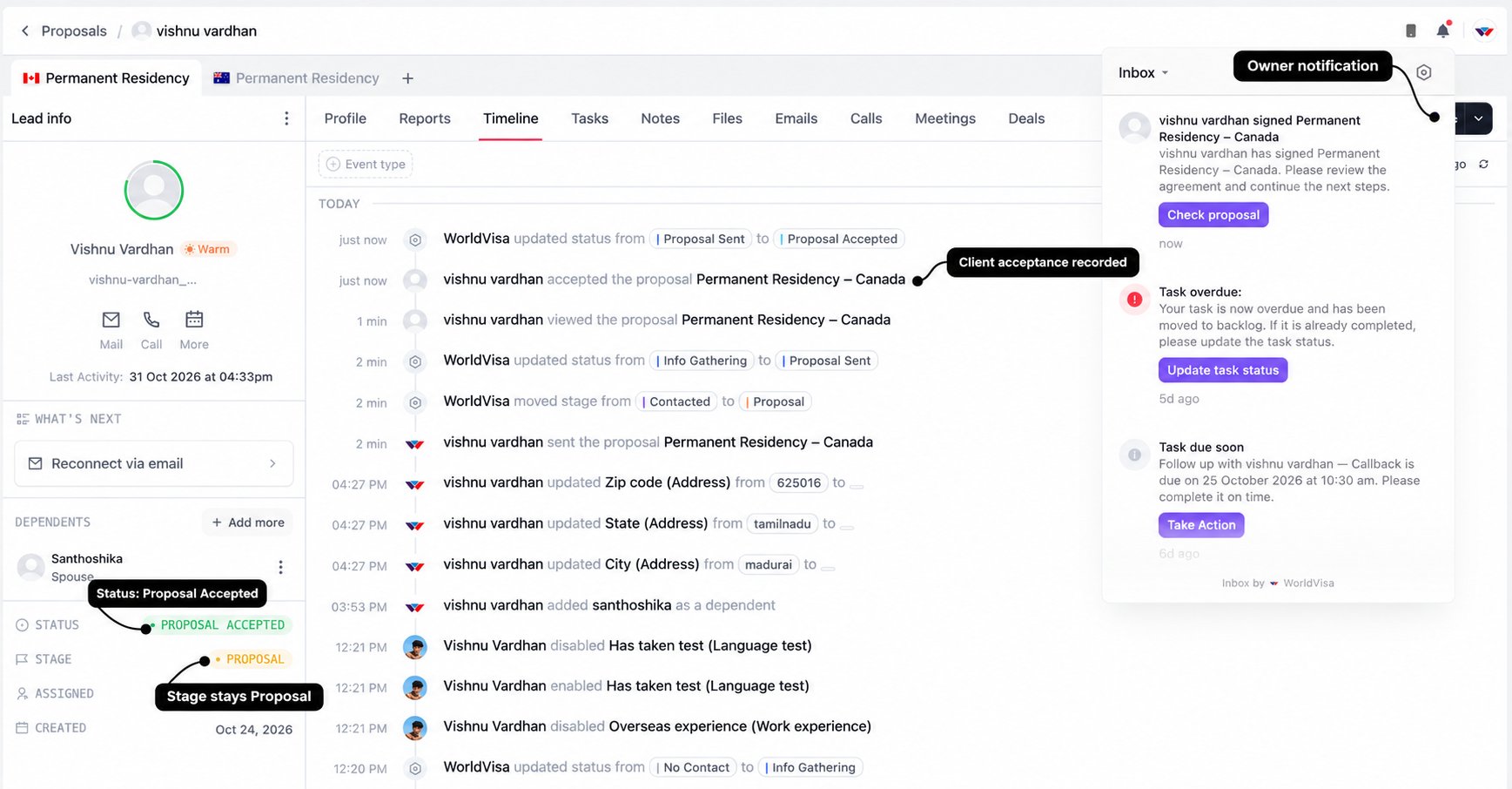
Why editing and resending become unavailable
Once confirmed, the proposal is locked. Edit proposal and Resend proposal link are disabled with an explanation. You can still review the accepted proposal using the available preview or copy-link actions.