
Start a call
Open the correct client’s enquiry and check the selected service and destination. Select Call in the Lead info panel. WorldVisa uses the client’s saved phone number and your configured calling account to initiate the call. Keep the softphone available and check that your calling account shows Registered and Online. If your account is not configured for outbound calls, contact your manager. The client also needs a phone number recorded in their profile.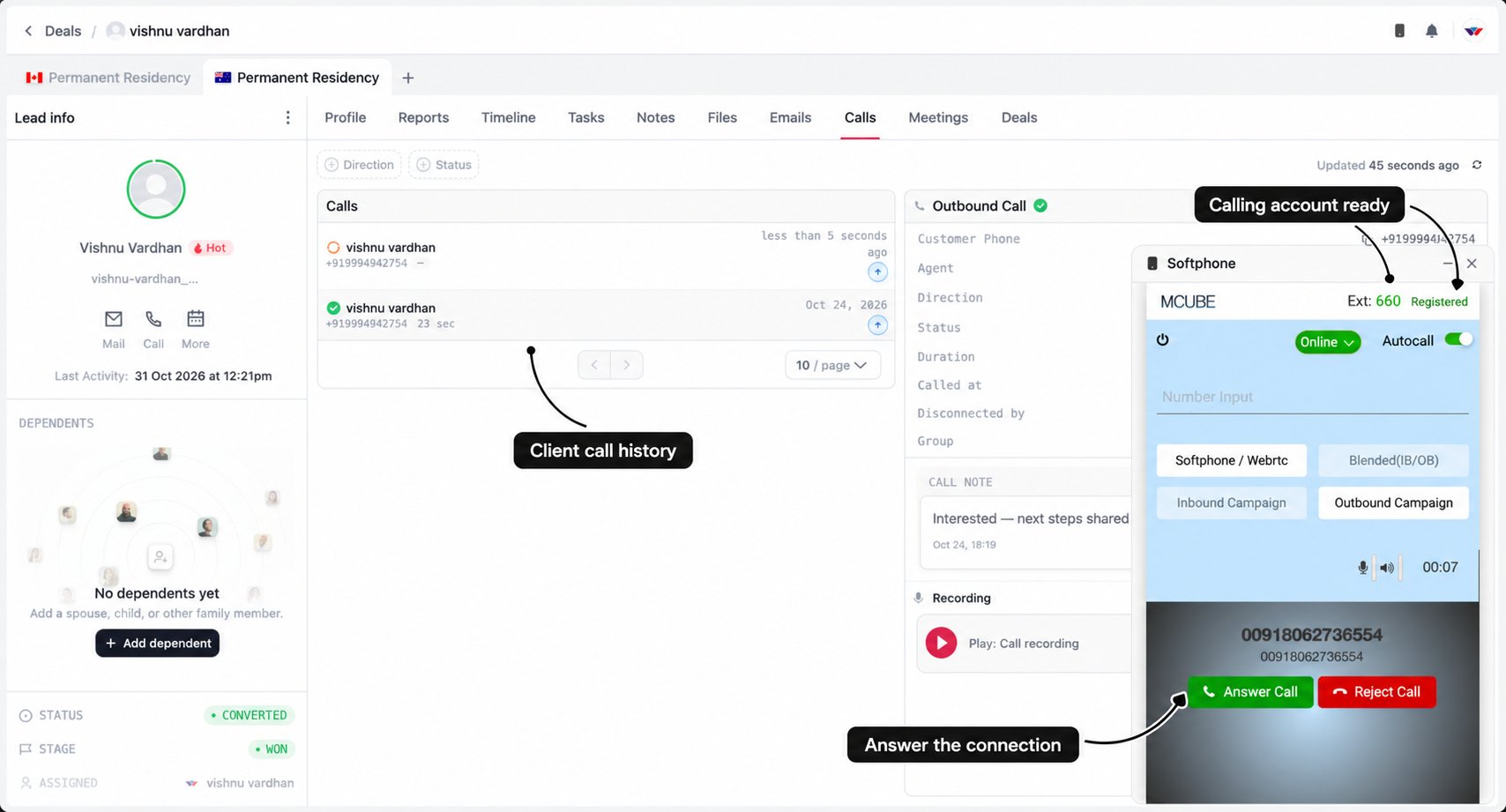
Answer the connection
Starting an outbound call from CRM can trigger an incoming connection on your softphone or configured phone. Answer that connection so the calling service can connect you with the client.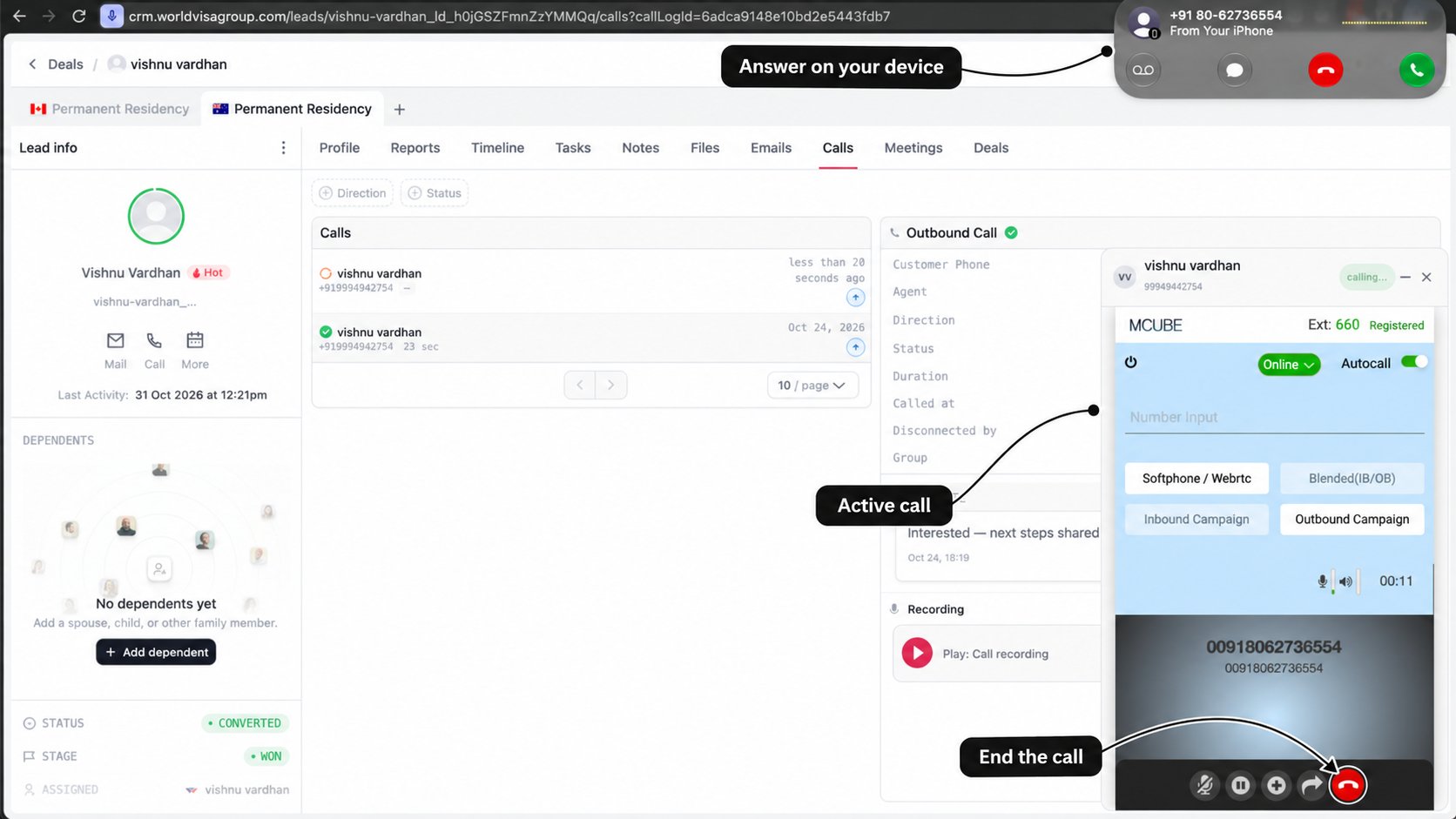
Record the outcome after the call
Once the call ends and its outcome is received, the required disposition window appears for call outcomes your organisation has made mandatory. Answered and missed calls can have separate requirements. When the required window appears, complete it before moving on. It cannot be dismissed by clicking outside it or pressing Escape. A call note is required; a callback date is optional.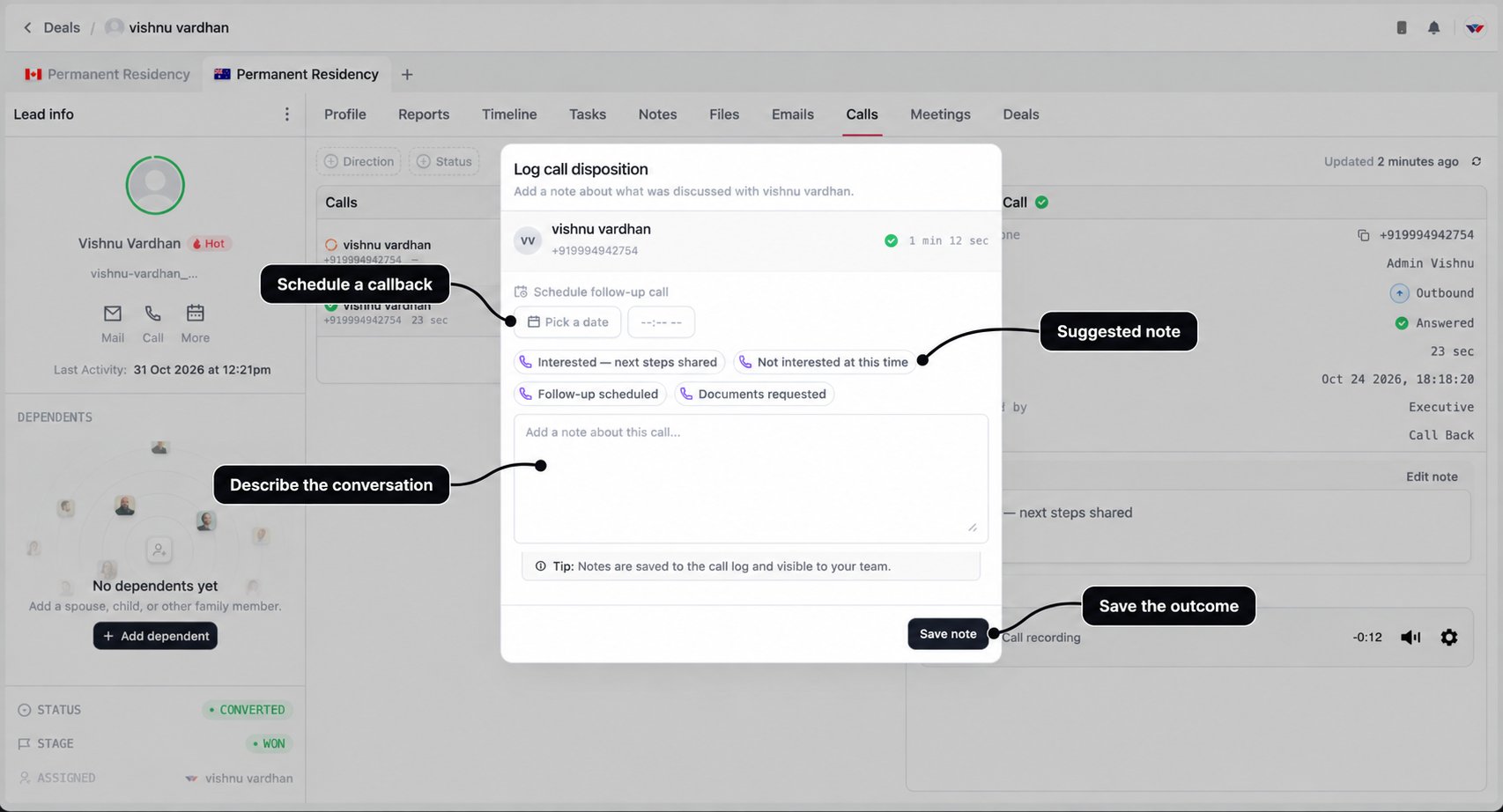
1
Check the call
Confirm the client and phone number shown. The window can also display the call outcome and answered duration so you know which conversation you are documenting.
2
Record what happened
Use a suggested phrase if it helps, then add the details that matter. Record what was discussed, what the client decided, what is still outstanding, and the agreed next action.Selecting a suggestion fills the note field. It does not save the note, so review the text before continuing.
3
Schedule a callback if needed
If another call was agreed, enter its date and time under Schedule follow-up call. Confirm the intended time with the client rather than choosing an arbitrary reminder.
4
Save the outcome
Select Save note and wait for the save to complete. Typing alone does not save the update. The note is stored against the call and is visible to your team.
Write a note that helps the next conversation
“Interested” tells your colleague very little. A short, specific summary gives them a starting point:Discussed the Australia assessment and requested updated employment documents. Client will send them tomorrow. Agreed to call on 2 November at 4 pm IST after reviewing the documents. Employment dates still need confirmation.Keep the note factual. Distinguish information the client provided from information you have verified. If the conversation changes the wider plan, add the relevant handover context in Notes as well.
If the call was not answered
For missed calls, the wording and suggested notes reflect whether the call was incoming or outgoing. Record what actually happened and what you will do next. For example: “Client did not answer. Will retry tomorrow afternoon.” Only record a reason such as a switched-off phone when you know that is what happened.Suggested phrases describe the call; they are not enquiry-stage actions. Choosing Not interested at this time fills the note but does not itself change the enquiry’s stage or status. Choosing Follow-up scheduled does not schedule a callback unless you enter its date and time.
Follow up on what was agreed
Saving a callback date can create a linked follow-up task. Updating the linked follow-up can update that task, so check the existing task before creating another reminder for the same call. The call note explains the conversation; the task keeps the next action visible. Review both before your callback, carry out the work, and record the new outcome.Review previous calls
Select Calls in the enquiry workspace, then choose a call from the list. Review its details on the right before making another call or discussing it with a colleague.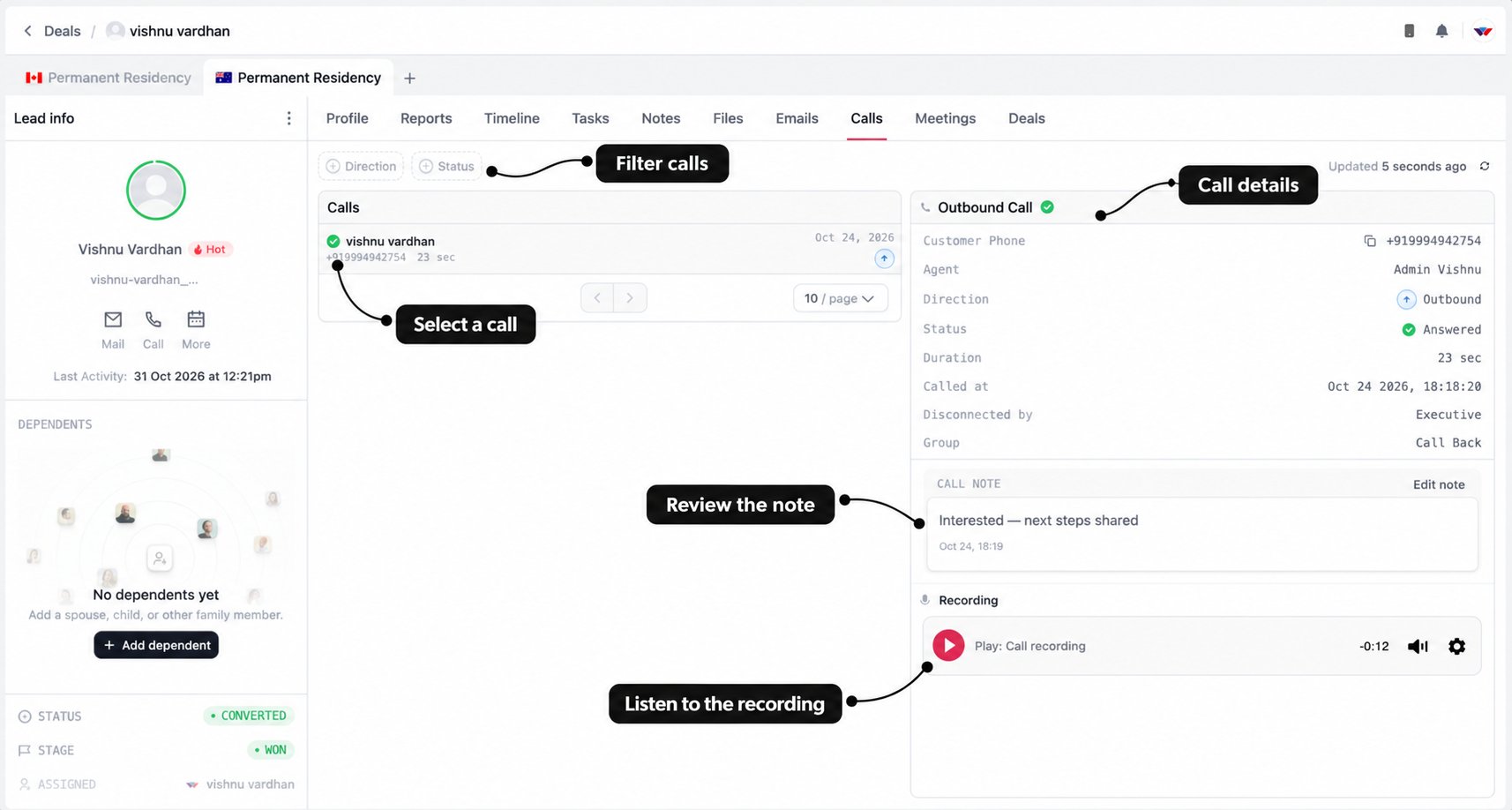
Use the refresh icon to request the latest list. A newly started call may still be awaiting its final outcome or recording, so review the current status before drawing a conclusion.