Check the client before creating an invoice
Open the correct enquiry and review the client’s billing details in Profile. CRM checks the details it needs before allowing invoice creation. In this example, the missing state and pin code must be completed first.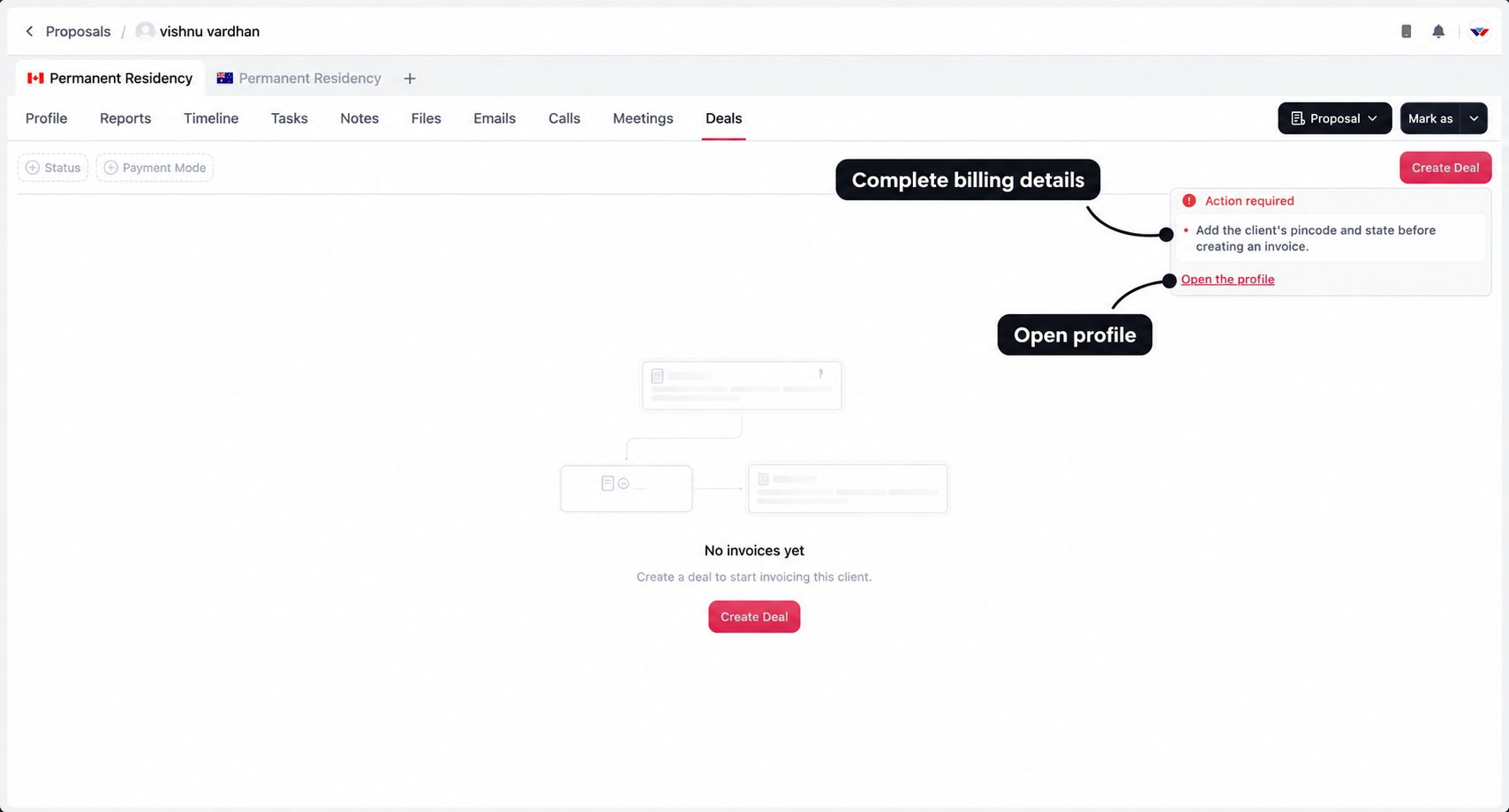
Create the deal
Open Deals and select Create Deal. The tab lists this enquiry’s invoices, with Status and Payment Mode filters to help you find them later.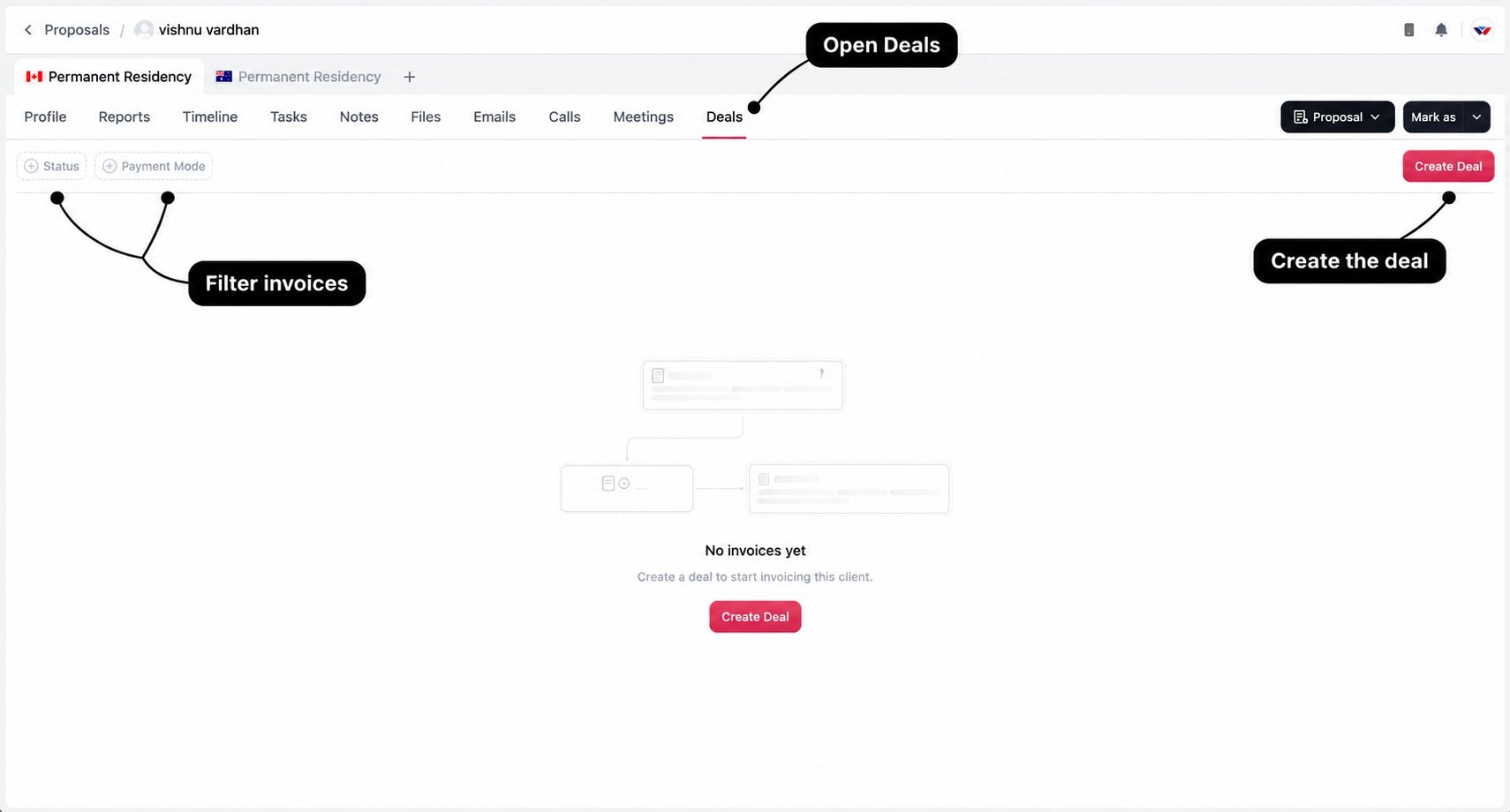
Creating a primary service invoice moves an enquiry that is not already Won to Deal / Deal Discussion. A draft is still preparation: it has not yet asked the client to pay.
Review the primary invoice
The builder shows your billing form on the left and the invoice preview on the right. Check both before sending, including anything filled from the accepted proposal.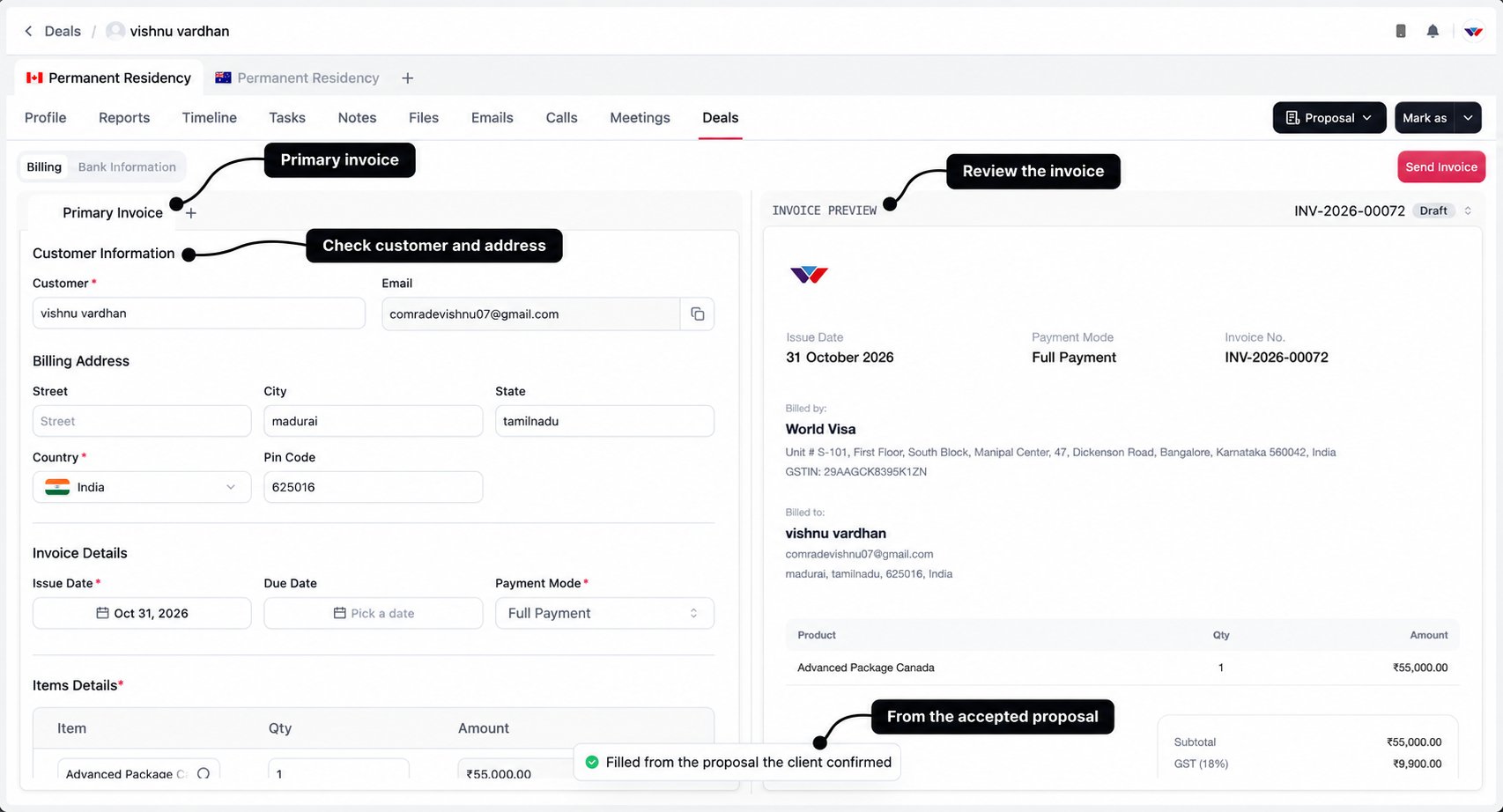
1
Check customer and billing address
Review the customer’s name, email, country, state, and pin code, along with the rest of the address. Make sure the invoice belongs to the intended client and enquiry.
2
Set the invoice dates
Check Issue Date and the relevant due date. A partial payment plan uses its own schedule, so review each instalment rather than relying on the disabled invoice-level Due Date field.
3
Review the items
Check the service, quantity, and amount. Add only the services you have agreed to sell. Compare the preview with the accepted proposal and resolve any difference with the client before sending.
4
Choose the payment plan and method
Set full or partial payment, then choose the payment method. Review any report credit, discount, GST, and platform fee in the final preview.
Payment mode: full or partial
Payment Mode describes how the invoice amount will be collected. It is separate from Payment Method, which describes how the client pays.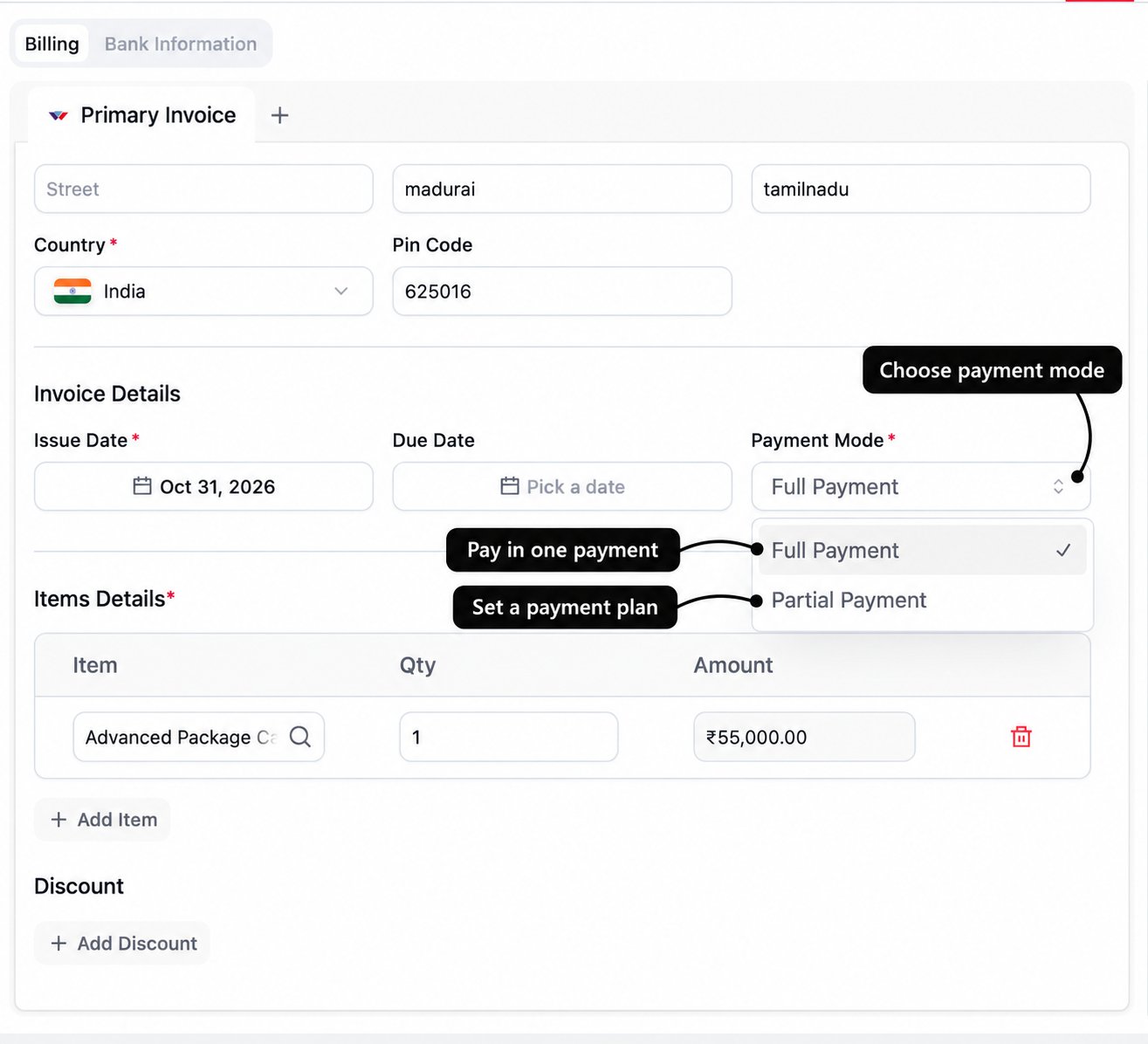
For example, a client can have Partial Payment / Split Payment and pay the first instalment through netbanking. The plan and the method answer different questions.
Choose the partial payment type
Select Partial Payment, then choose Stage-wise or Split Payment under Type.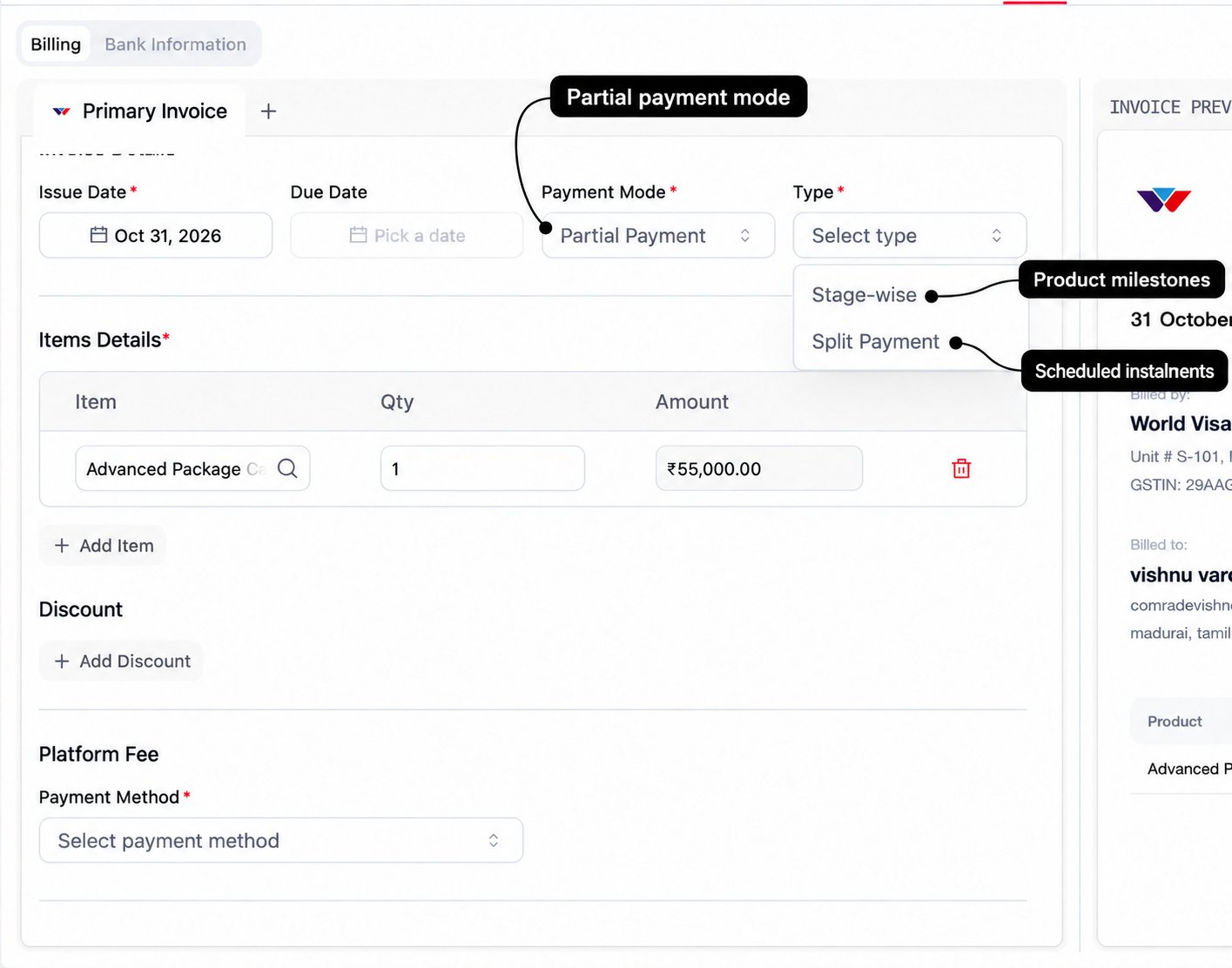
When stage-wise payment is unavailable
If the chosen product has no stage-wise plan, CRM shows the message below. Choose a supported arrangement rather than promising milestones the product does not provide.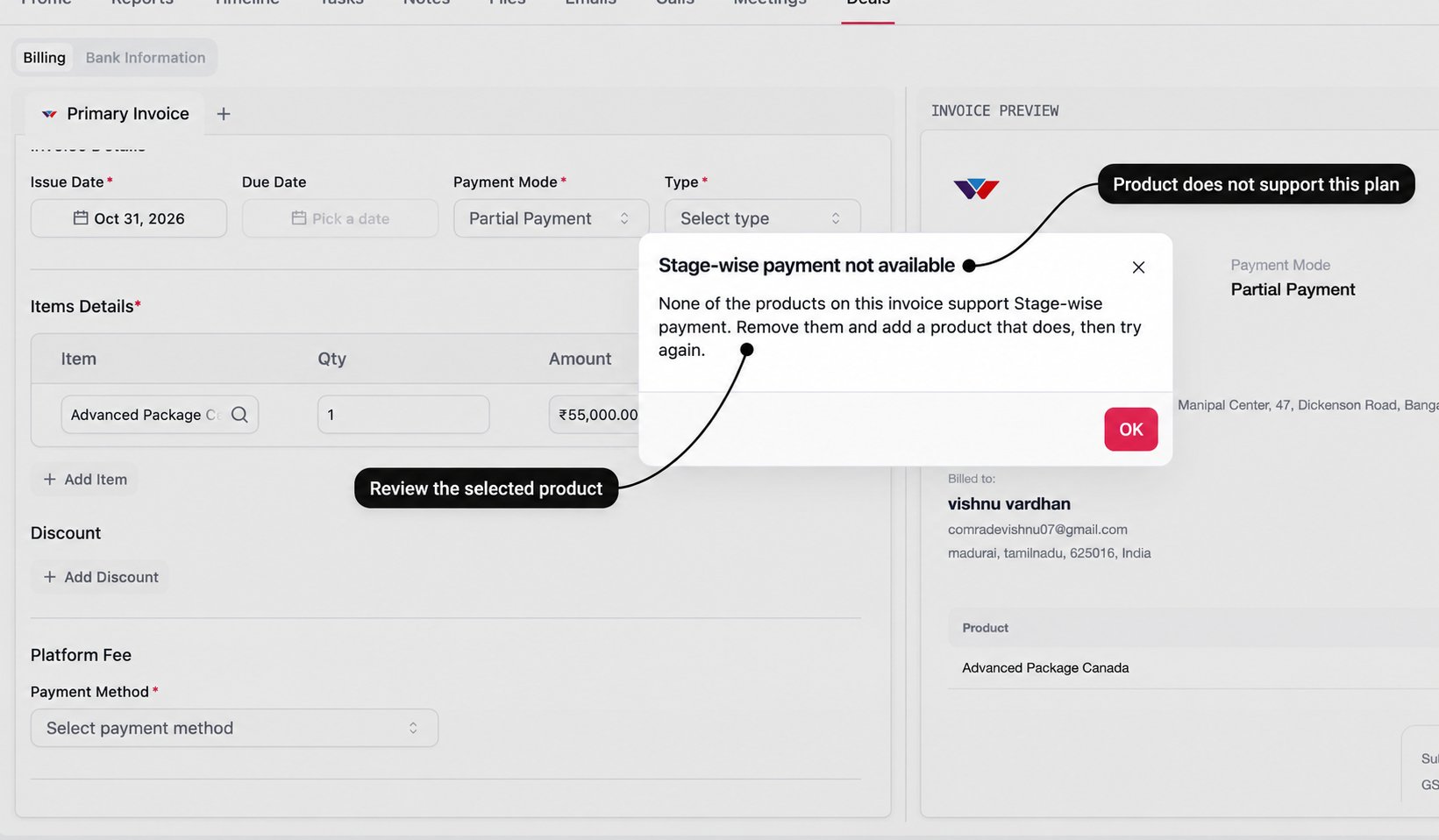
Set up split payments
Choose 15 Days, 30 Days, or Custom, then review the names, amounts, and dates of the instalments. Use Add Split where another instalment is needed.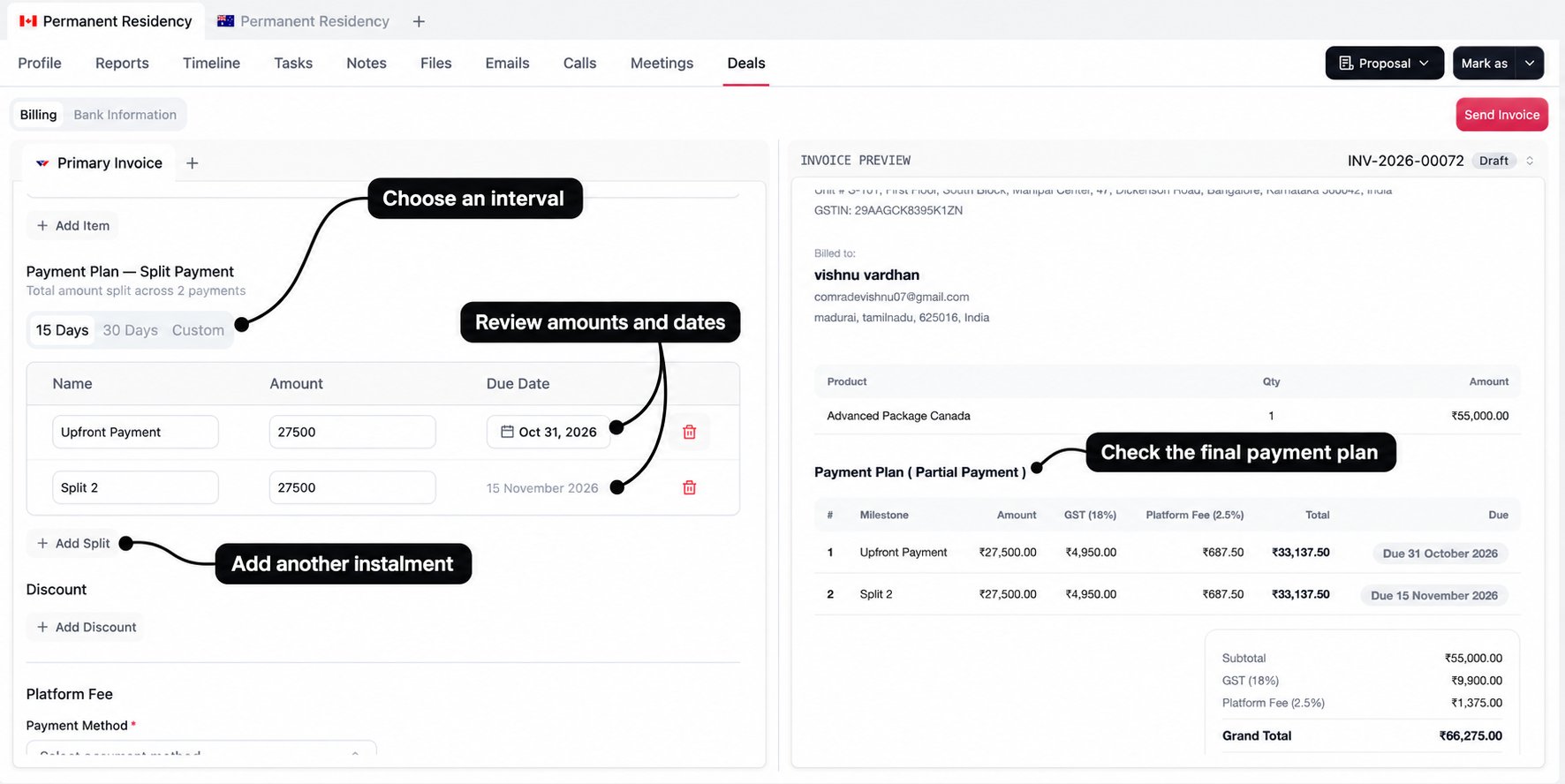
Apply report credit
A paid report can create credit against a later service purchase for the same enquiry. The available credit comes from the report’s taxable value after discounts; it excludes the GST and platform fee paid on that report. A free report does not create a paid-report credit. When credit is available, use Apply Report Credit. The preview shows it as Report purchase credit, reducing the invoice amount.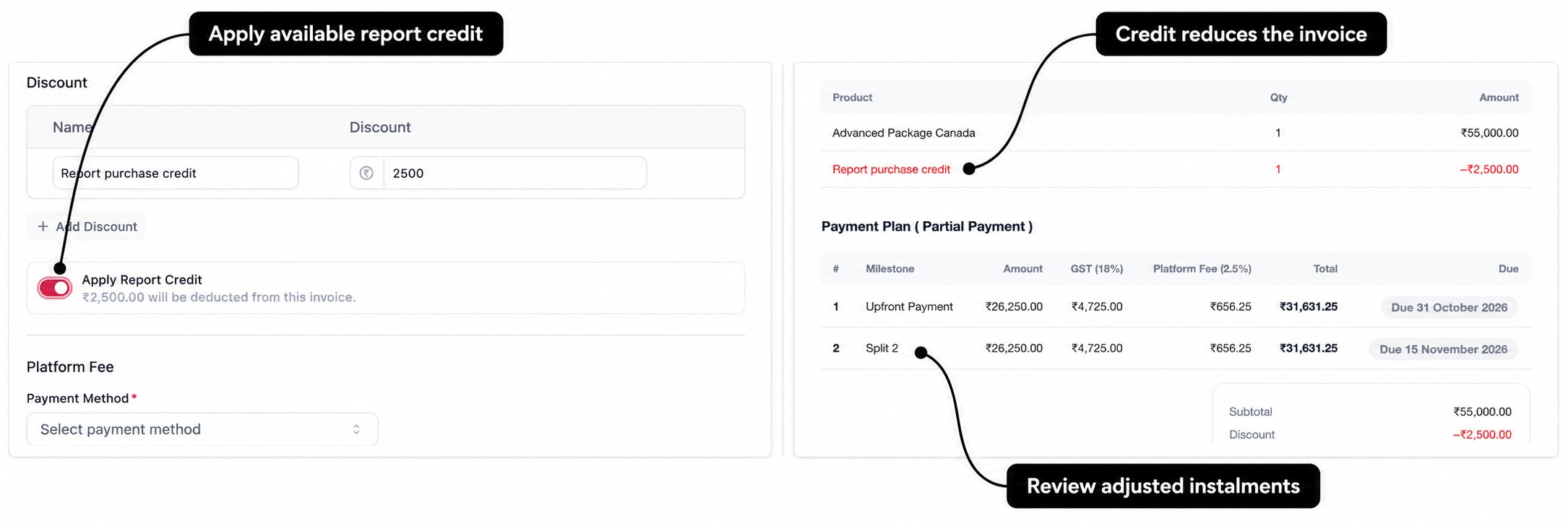
- Check the available amount shown by CRM; do not enter a second manual discount for the same report credit.
- Credit can be held by only one invoice in a primary/secondary group. If it is already held by the other invoice, the option is unavailable here.
- The invoice subtotal must cover the available credit for the deduction to apply. If CRM says credit is reserved because the subtotal is too low, review the preview before sending; do not assume the amount has been deducted.
- Report credit is an adjustment to the service invoice, not a new cash payment or refund to the client.
Primary and secondary invoices
The Primary Invoice holds the main service purchase and can use full or partial payment. Use the + beside its tab to add a linked Secondary Invoice when you need to bill an additional service separately.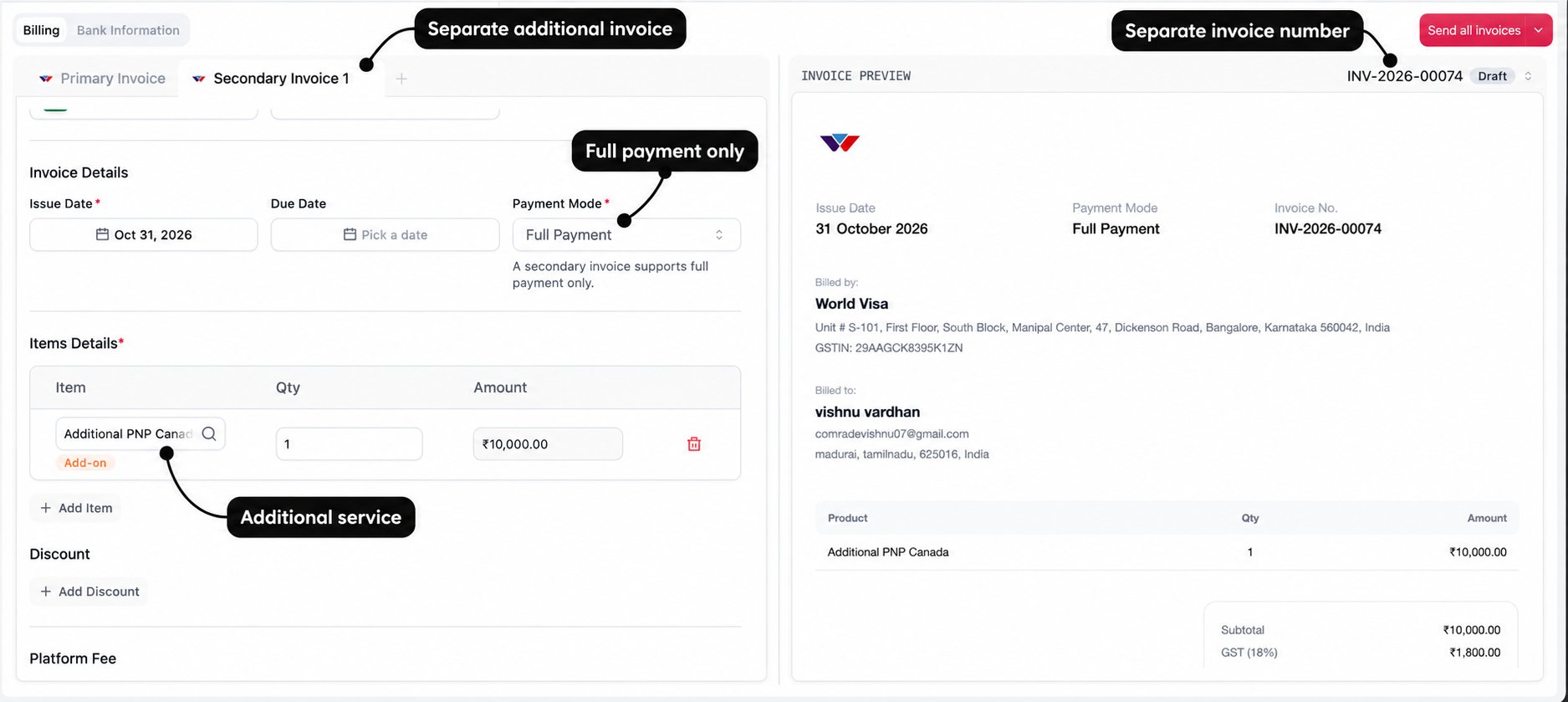
The current setup supports one secondary invoice per primary. It is not the next instalment of the primary invoice. Instalments belong inside the primary’s payment plan; a secondary bills a separate set of items.
Payment methods and platform fees
Choose the intended Payment Method under Platform Fee. Available methods include card types, UPI, netbanking, QR where supported, and manual methods such as direct bank transfer, cash, and cheque. Open Bank Information to review the displayed platform-fee reference. Check the selected method and the actual invoice preview before quoting the final amount. The percentages in the screenshot illustrate the configured reference at the time it was taken.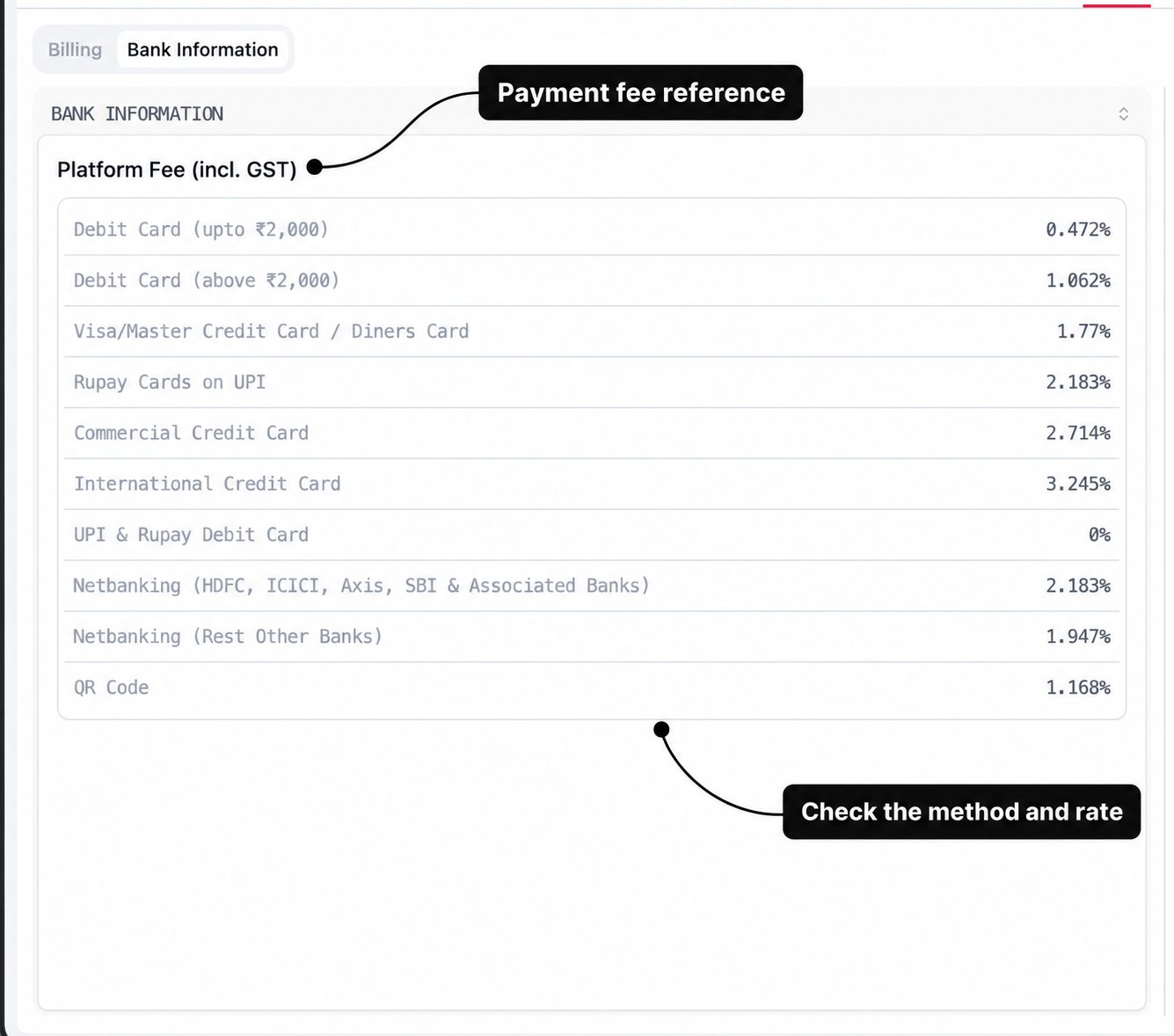
Direct transfer, cash, and cheque: notify Accounts
Give Accounts the client name, enquiry or invoice link, invoice number, expected payment or instalment amount, method, and any available transaction reference or payment evidence. For cash or cheque, include the relevant collection or cheque details. If the client says they have paid but CRM still shows payment pending, follow up with Accounts before asking the client to pay again. Manual payment recording is restricted to authorised Finance users. It records the currently payable amount and then uses the payment-confirmation flow. Staff should coordinate with Accounts rather than treating a note or screenshot as a system payment confirmation.Send the right invoices
Review the preview one final time. With a single invoice, select Send Invoice. For a primary/secondary group, use the send menu to choose the whole group or the intended invoice.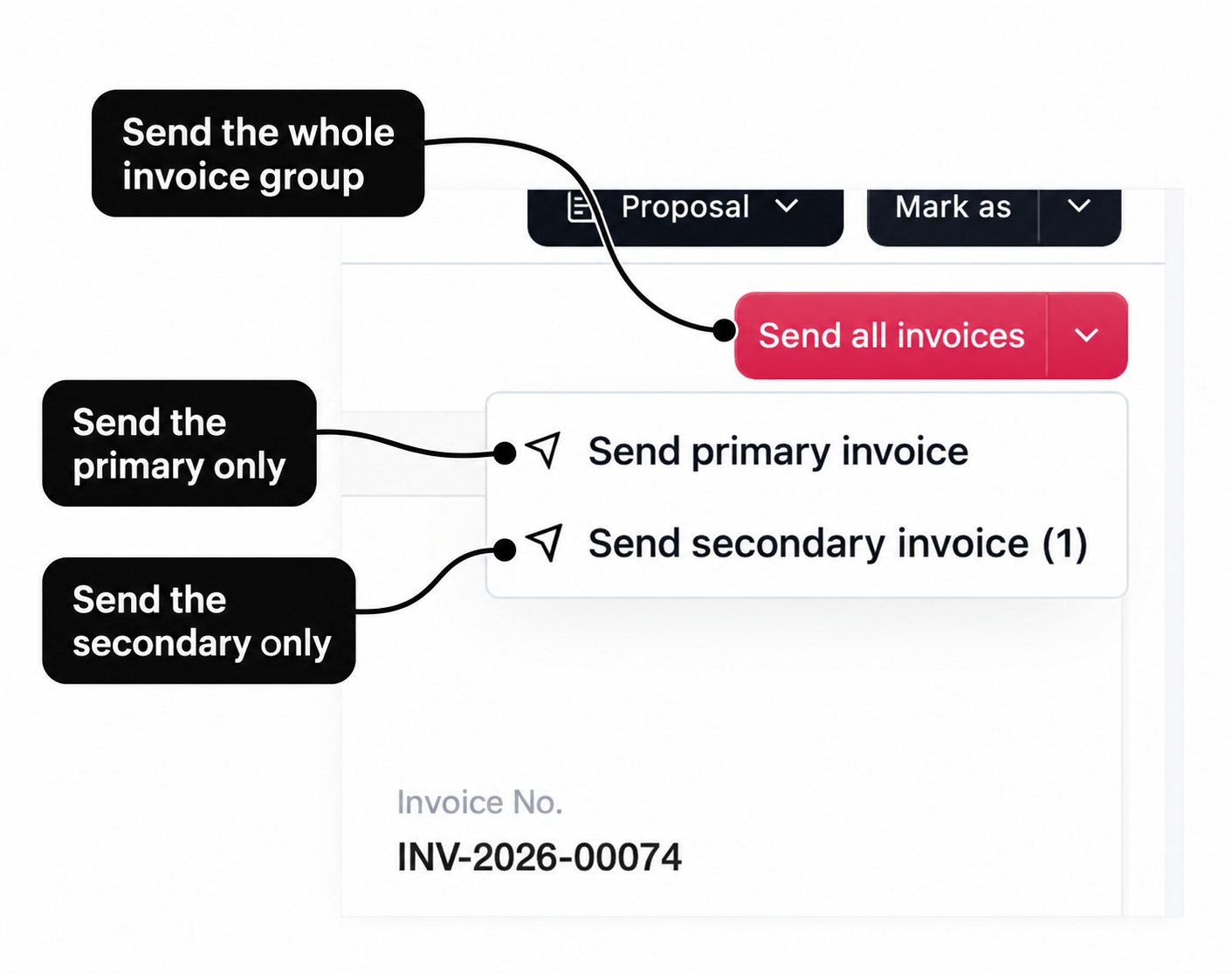
Review a saved invoice
Select an invoice in the list to see its preview, status, payment plan, and available actions. The screenshot below shows a Draft invoice alongside a separate paid invoice.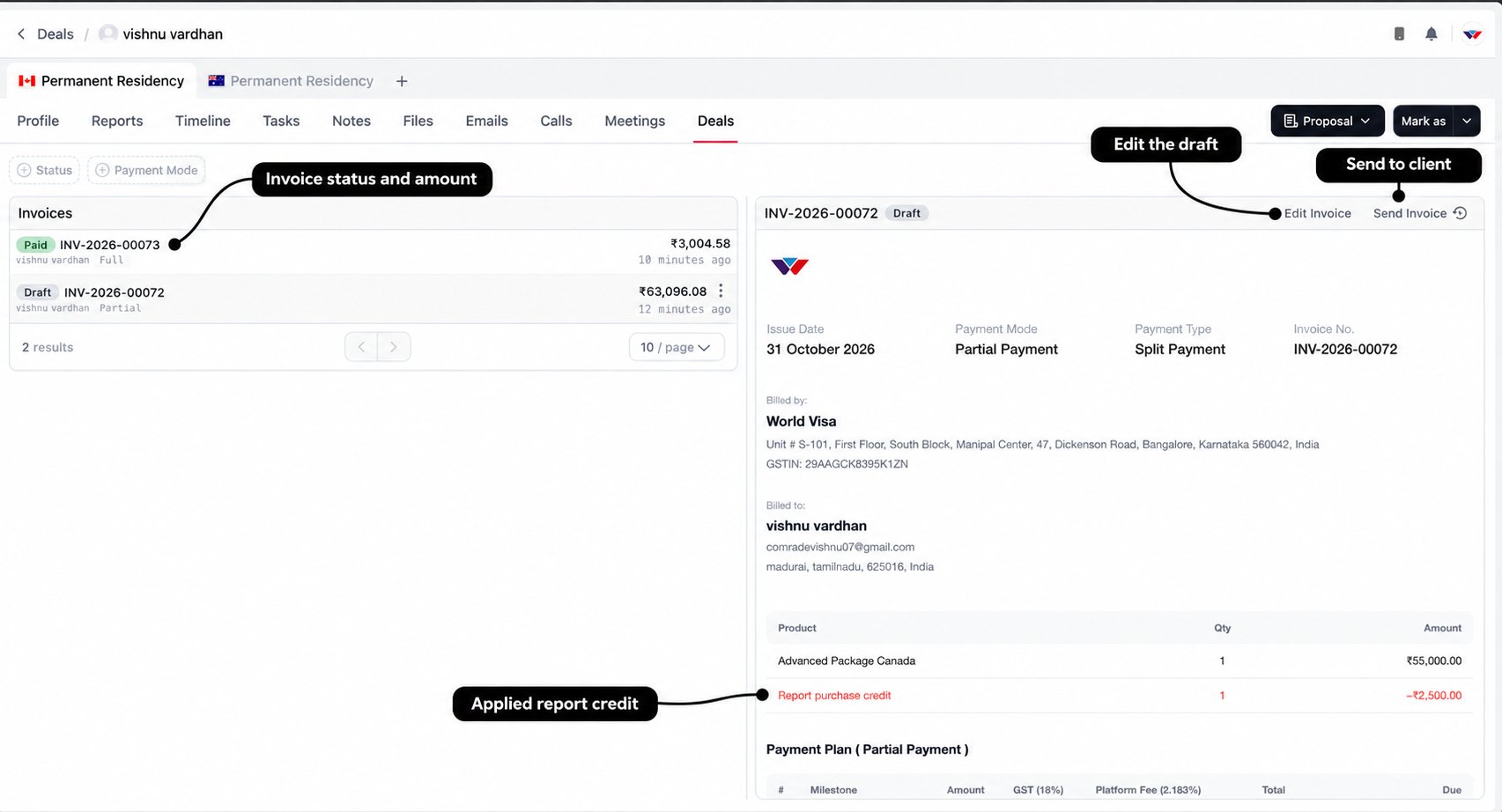
These describe the invoice, not the enquiry’s stage. A client can have a converted enquiry and still owe later instalments on a partially paid invoice.
If sending is blocked because an agreement template is missing or the service/country changed, resolve the stated issue before asking for payment. Do not bypass the agreement requirement to get the invoice out.
After the client pays
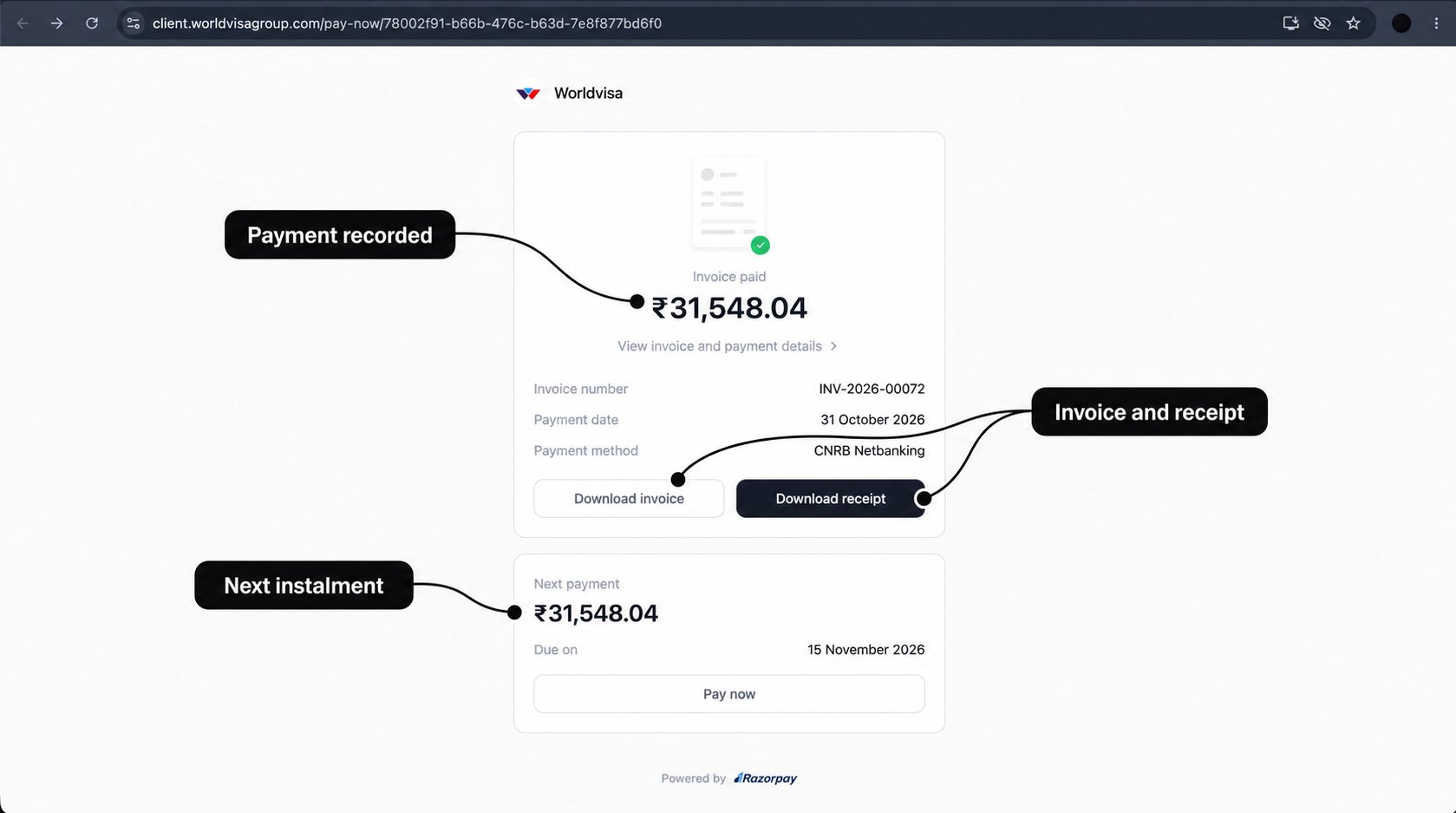
For online payments, CRM uses the gateway’s payment confirmation. For direct transfer, cash, and cheque, Accounts must record the verified payment. Check the invoice and Timeline to see what has actually been received.