
Review the Timeline
The Timeline brings recorded activity for the enquiry into a dated history. You can review profile updates, stage and status changes, assignment, emails, calls, meetings, notes, reports, and other recorded events.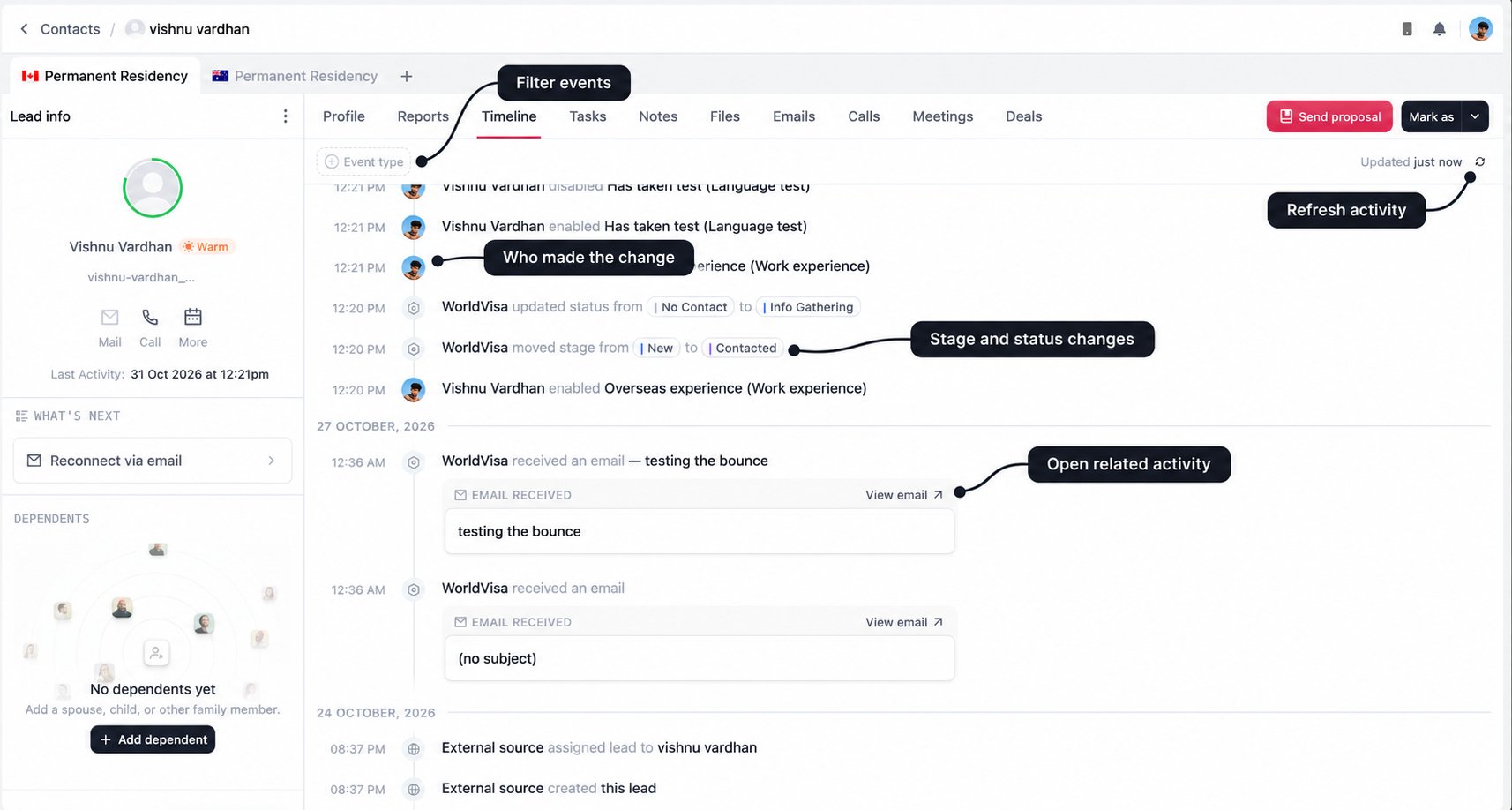
Events are grouped by day, with times beside individual entries. Use Load more when available to review older activity. If a filtered view is empty, clear the filters before concluding that no activity has been recorded.
Read the event in context
The Timeline tells you what was recorded. It does not always explain why it happened. For example, an automatic move from New to Contacted does not by itself confirm that a conversation took place. Read the call, email, and note history before deciding what to do next. If you need to understand a client’s concern or a decision made during a call, look for the accompanying note as well as the activity entry.Add a useful note
Open Notes on the correct enquiry and write your update in the composer at the bottom. Add the details another staff member would need to continue from where you stopped.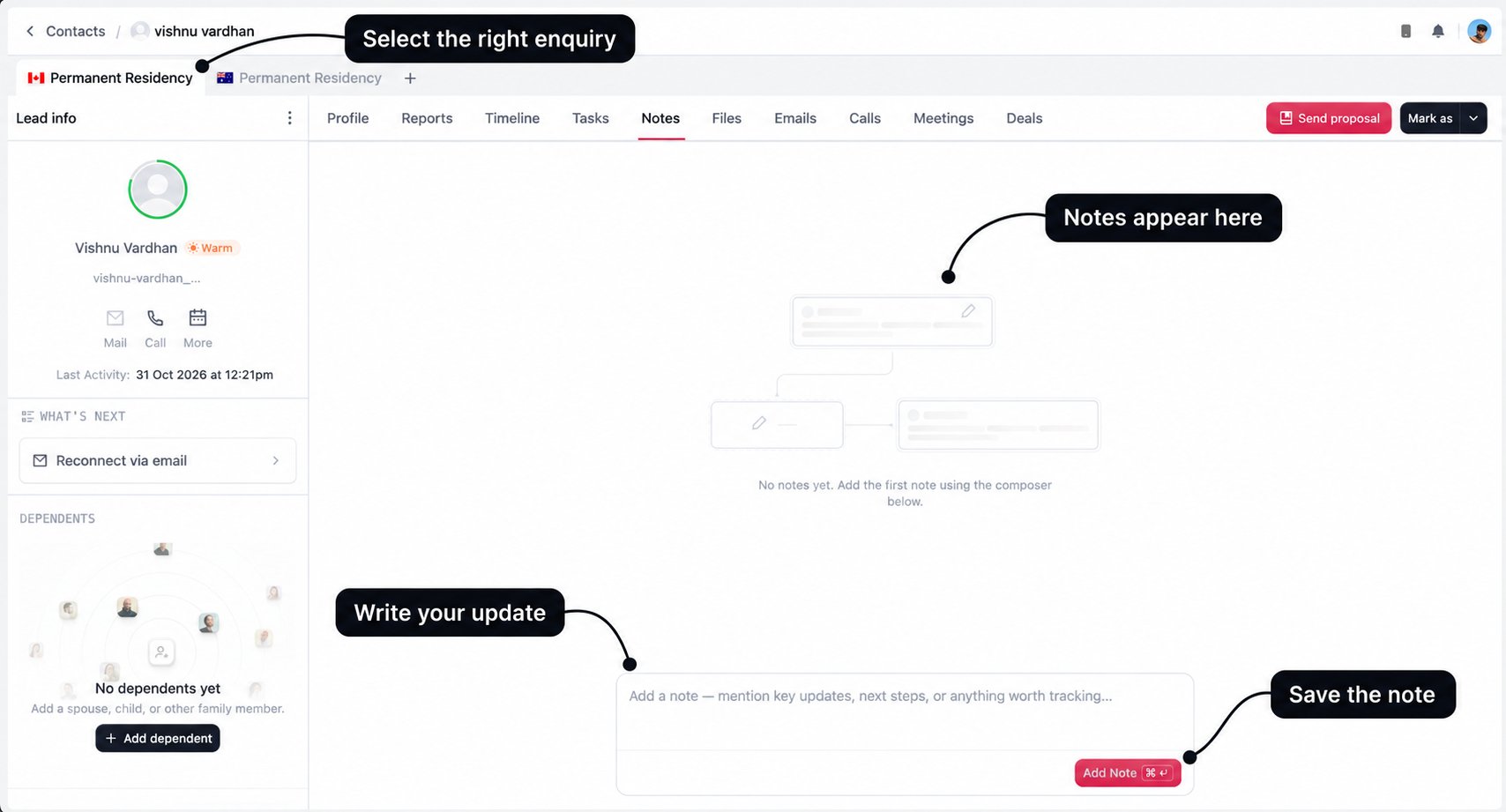
- Select the right enquiry. Confirm the service and destination before writing, particularly when the client is considering several options.
- Write your update. Summarise the conversation, confirmed information, unanswered questions, and agreed next step. Use short paragraphs or lists to keep it easy to scan.
- Save the note. Select Add Note, or use Command + Enter on Mac or Ctrl + Enter on other platforms.
- Check the saved entry. The composer clears after a successful save. Your note appears in the feed with its author and time.
Notes are not saved just by typing. Use Add Note to submit your update. An empty note cannot be added.
Write for the person taking over
Your notes support more than the next sales follow-up. DMS case officers can read the notes associated with the enquiry from the related application. When the enquiry converts, this history helps them understand the client and what was discussed before the case reached their team. Write with that handover in mind. A note such as “Spoke to client, interested” leaves the next person with questions. Explain what the client is interested in, what you confirmed, and what still needs attention.
Distinguish what the client told you from what has been checked. For example, write “Client reports six years of experience; supporting employment documents are pending” rather than presenting the experience as verified.
Example of a follow-up note
The following is an example of the level of detail to record, rather than a checklist the system fills in for you:Discussion: Client initially asked about Canada PR and is also open to exploring Australia. Reviewed the quick eligibility breakdown and explained that the profile needs further assessment before deciding. Background: Client reports six years of work experience. Employment dates and supporting documents still need verification. Spouse intends to apply with them. Pending: Client will share their latest résumé and language test result. Spouse’s profile details are not yet complete. Next step: I will review the documents and call the client on 3 November at 4 pm IST. No final destination has been agreed.
Before handing over to DMS
Add a current summary so the case officer can understand the enquiry without piecing together every earlier conversation. State the service and destination the client chose, relevant family members, assessments already discussed, pending information, and any expectations that need follow-up. If an earlier plan changed, make the current decision explicit. For example: “Client has chosen Canada PR for now. Australia was discussed as an alternative and is not proceeding at this stage.”Review and correct notes
Saved notes are grouped by day. Each entry identifies its author and time, and updated entries show (edited). Use Load more when available to read older notes. For your own staff-written notes, the available controls let you:- Edit: Select the pencil, update the content, and select the check mark to save. Select the cross to cancel your edit.
- Delete: Select the delete icon and review the confirmation before proceeding.