Send workflow notifications to a Slack channel by connecting an incoming webhook. Keep the destination on the subscriber so the same workflow can send updates to different channels for different recipients.

Set up the Slack app

1

Create a Slack app

Open the Slack app dashboard and create an app for the workspace that will receive notifications.
2

Enable incoming webhooks

Enable incoming webhooks in the app settings, then add a webhook to the workspace.
3

Choose a channel

Approve the destination channel and copy the generated webhook URL. Treat the URL as a secret.

Connect Slack in WorldVisa

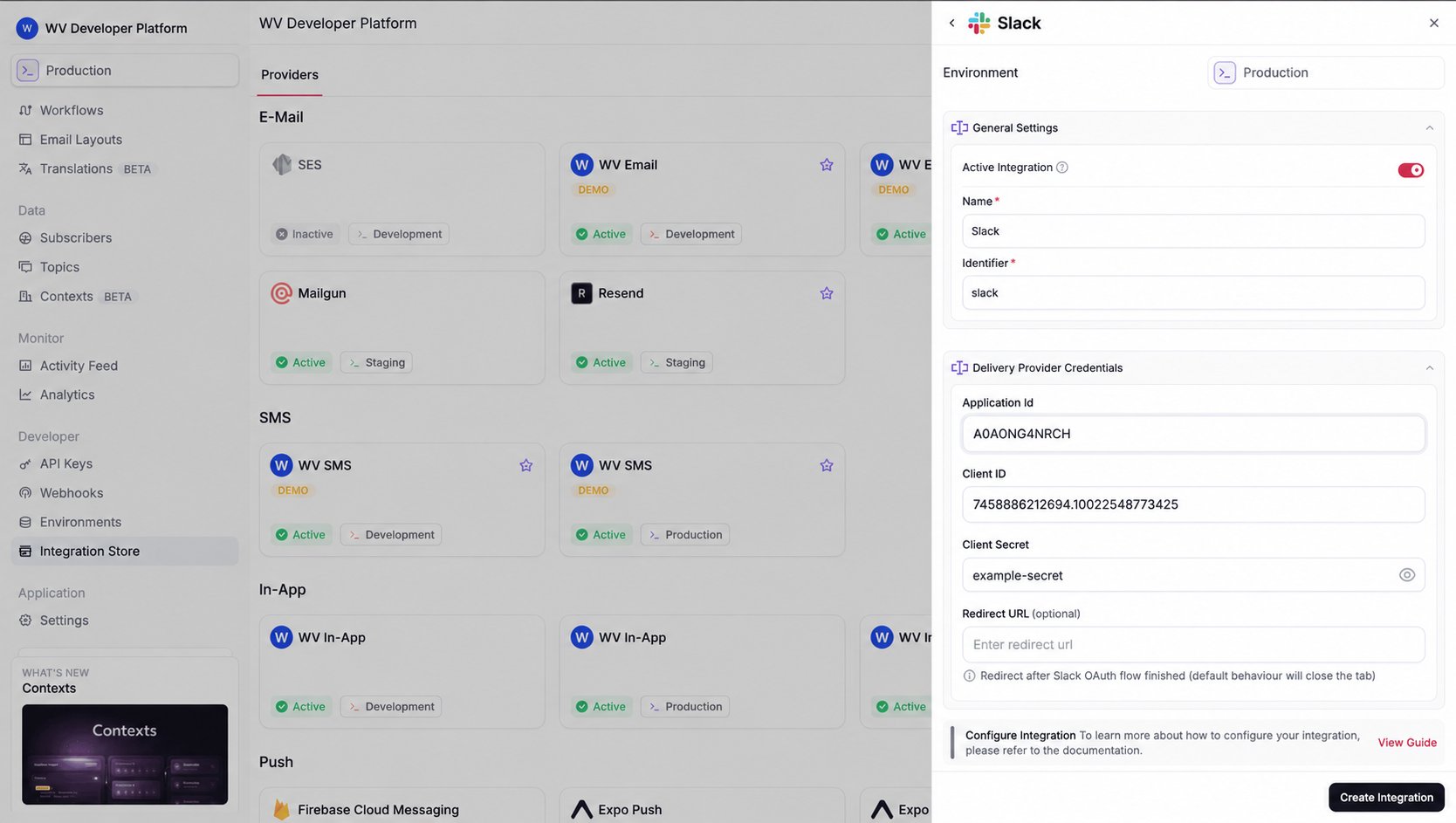
Open the Integration Store, select Slack under Chat, and create an active integration. Give it a clear name and identifier, such as slack-operations. Slack integration settings

Register the destination

Create the subscriber first. From your backend, register a webhook endpoint on the Slack integration:
Keep webhook registration on your server. Your application’s frontend should never receive the WorldVisa API key.

Send notifications

Add a Chat step to your workflow, write the message, and trigger it for the subscriber whose endpoint you registered. Use Liquid variables such as {{payload.enquiryId}} to include the details your team needs.

Format messages with Block Kit

Use the shared Chat block editor for supported card content. WorldVisa renders it for Slack. Keep a useful text body as a fallback, and use the Chat step’s provider overrides when you need supported Slack-specific fields. For a digest, use the digest variables in the step body to summarize collected events.

Check delivery

Open the Activity Feed and inspect the Chat step. Check that the integration is active, the subscriber has the correct endpoint, and the Slack app still has access to the selected channel. A revoked or deleted webhook needs to be replaced.